

Clickable GIF
Make a GIF clickable — with several links, not just one.
A GIF file can't hold a link. Position hotspots over it instead: each region opens its own card with text, media, and a CTA, on desktop and on touch.
Free forever plan · No credit card · Works in Wix, Webflow, WordPress, Shopify, Squarespace
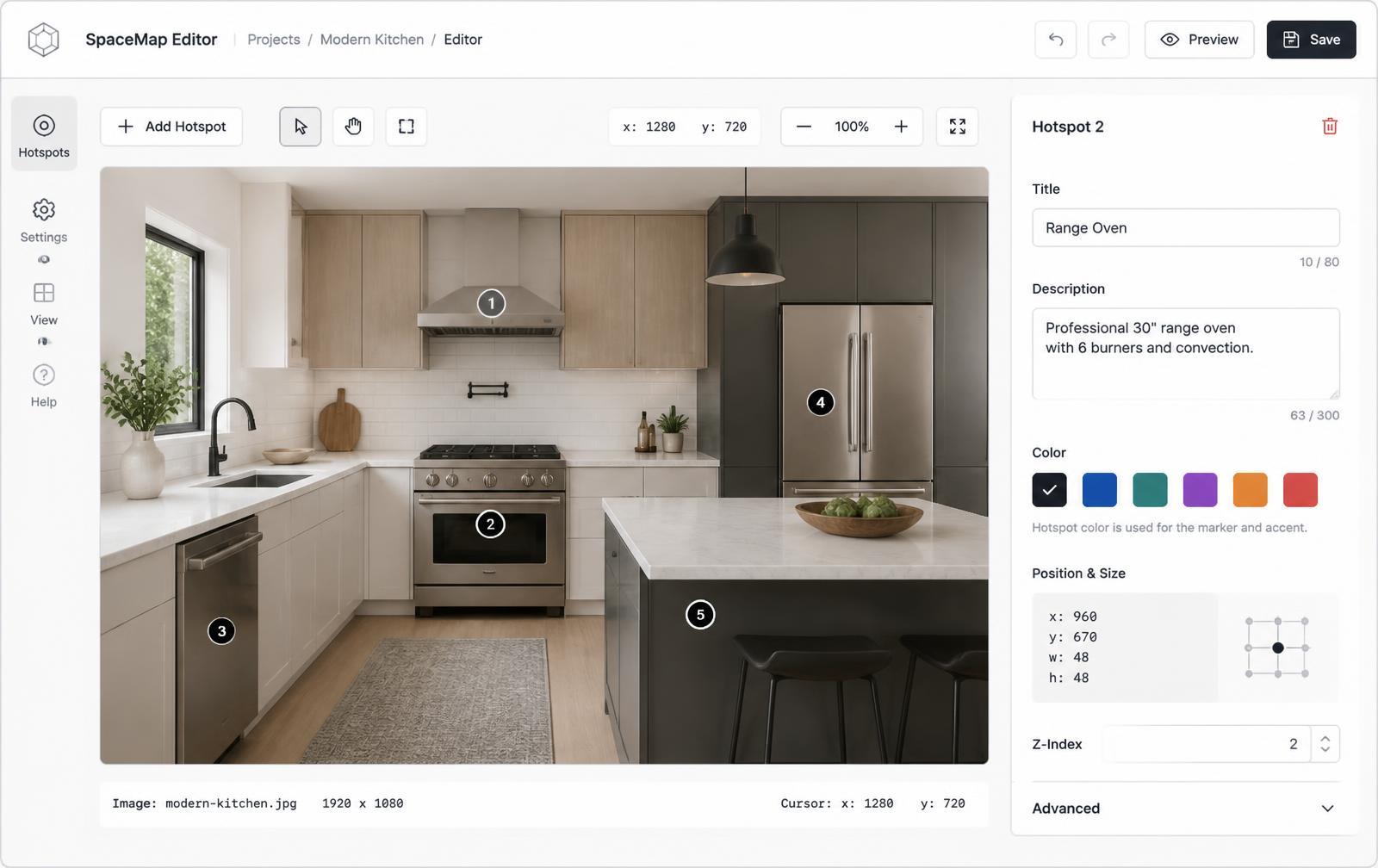
Try it with your own image or GIF
Drop in an animated GIF, click to place hotspots over it, and hover to preview the cards. Publish it and get your embed with a free account.
This is a live demo — nothing here is published yet. Create a free account to publish your image and get a one-line embed code for Wix, Webflow, WordPress, Squarespace or plain HTML, with hosted images, images and video in the cards, CTA buttons and edits that go live instantly. Free includes 1 published image with the Interactive Image badge; Pro removes the badge and unlocks white-label embeds.
Many links, one animation
One hotspot per destination instead of a single anchor wrapped around the whole file.
Cards, not just links
Each region can open a title, description, photo, and button rather than jumping straight away.
Touch-friendly
Hover on desktop, tap on phones — no hover-only behaviour that dead-ends on mobile.
What you get
- Works with GIF, PNG, JPG, and WebP
- Percentage-positioned markers stay aligned at any width
- Animation continues playing behind the hotspot layer
- One embed snippet for any website builder
- Free plan publishes one image with a limited hotspot allowance
Why a GIF can't be clickable on its own
A GIF is a container of frames. There is no field in the format for a URL, no notion of a region, nothing an author could point at a destination. Every "clickable GIF" you have ever seen is really HTML doing the work, and there are only two ways to do it.
The first is wrapping the whole thing in an anchor — <a href="..."><img src="loop.gif"></a> — which gives you exactly one destination for the entire animation. The second is positioning separate elements over the image so that different areas lead to different places. That is what a hotspot layer is, and it is the only version that supports more than one link.
Placing hotspots on something that moves
Hotspots are anchored to the image frame, not to the pixels inside it, so they don't follow a moving object. Three habits make that a non-issue:
- Anchor to stable regions. A product that stays put, a fixed label, a quadrant of the composition. Avoid pinning a marker to something that traverses the frame.
- Place from a representative frame. Pick a moment where everything you're labelling is visible, and position against that.
- Consider a still instead. If the animation exists mainly to draw attention, a still frame with visible markers often communicates better — the visitor can read at their own pace rather than waiting for the loop to come back around.
The email question, answered honestly
This is the most common reason people search for a clickable GIF, and the answer is disappointing. Email clients are a decade behind browsers:
| Approach | Website | |
|---|---|---|
| Whole GIF wrapped in one link | Works | Works everywhere |
| Legacy <map> / <area> | Works but not responsive | Unreliable; stripped by many clients |
| Positioned hotspots / iframe embed | Works, responsive, rich cards | Blocked — no iframes, no positioning |
| GIF animation itself | Plays | First frame only in Outlook on Windows |
The pattern that actually converts: put a single-link GIF in the email — with a strong first frame, since some recipients will only ever see that — and point it at a landing page carrying the interactive version. You get deliverability in the inbox and real interactivity on the page, and you can measure both.
Keeping the file small enough to be worth it
GIF is an old format: 256 colours per frame and no modern compression. A five-second screen recording can easily land at 8 MB, which on mobile data is a very expensive way to show a loop. Before uploading:
- Trim the loop to the shortest span that still reads.
- Drop the frame rate to 10–15 fps — most GIFs don't need more.
- Export at the width it will display at, not double it.
- Reduce the palette; flat graphics survive 64 colours fine.
- If it's still over roughly 2 MB, convert to MP4 or WebM — typically a tenth of the size at better quality — or use a still image with hotspots instead.
Our interactive image vs video vs GIF comparison works through when each format is genuinely the right call.
Related tools
For still images, start with the clickable image maker or the image hyperlink generator. For the markup-level options, see making an image clickable without an image map and the CSS image map approach.
Need it built for you?
Big maps, bulk hotspots, custom designs or integrations, built by our team at Upcode.
Turn any image into a guided experience.
Free forever plan. Paste one iframe into your site and ship.
Create your interactive image