

How do I add image hotspots in Wix?
In the Wix editor choose Add, then Embed Code, then Embed HTML, and paste the iframe snippet from Interactive Image into the element, then stretch it to the content width and publish. No plugin, app or Velo code is needed, and it works in both classic Wix and Wix Studio.
For Wix
The interactive image maker built for Wix.
Add clickable hotspots to any product photo, floor plan, or diagram, and paste one iframe into your Wix site. Ready in minutes.
Free forever plan · No credit card · Works in Wix, Webflow, WordPress, Shopify, Squarespace
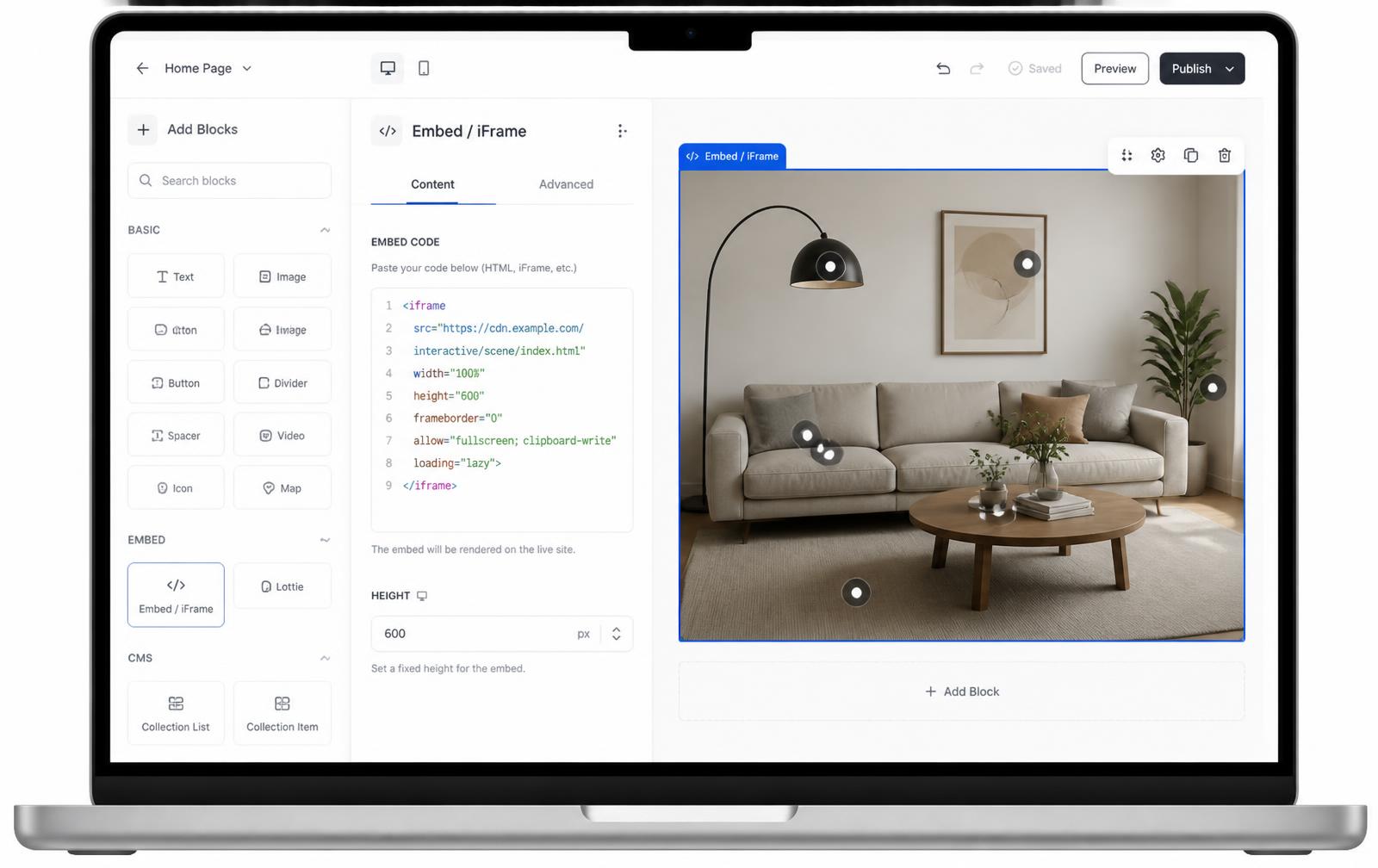
Build your Wix hotspot image here
Upload your image, click to place hotspots, and hover to see the cards. Publish with a free account to get the iframe you paste into a Wix HTML embed.
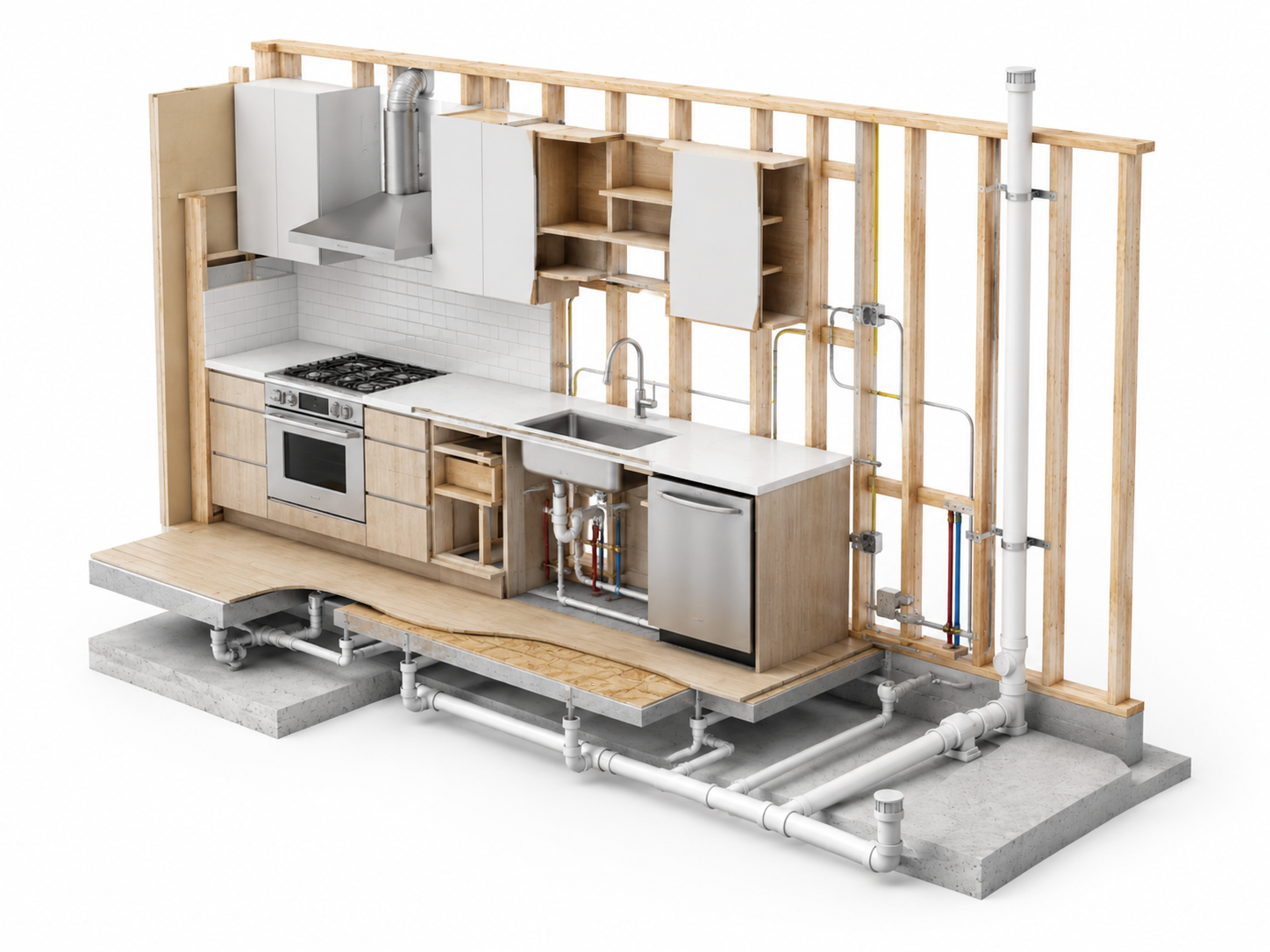
This is a live demo — nothing here is published yet. Create a free account to publish your image and get a one-line embed code for Wix, Webflow, WordPress, Squarespace or plain HTML, with hosted images, images and video in the cards, CTA buttons and edits that go live instantly. Free includes 1 published image with the Interactive Image badge; Pro removes the badge and unlocks white-label embeds.
One iframe, done
Copy the snippet from Interactive Image into a Wix HTML embed. That's the whole setup.
Responsive on Wix mobile
Percentage-based hotspots keep the interactive image sharp on Wix's mobile editor and Wix Studio breakpoints.
Update once, everywhere
Edit hotspots in Interactive Image and every Wix page holding the embed refreshes on the next view.
What you get
- Works with the standard Wix HTML embed
- Compatible with Wix Studio breakpoints
- Percentages keep hotspots pixel-accurate on any device
- Popups support images, video, and CTA buttons
- Update the source once — every Wix page updates too
Wix editor vs Wix Studio: two slightly different embeds
Both editors accept the same iframe, but you reach the element differently and the sizing behaviour is not identical.
- Wix Editor (classic): Add → Embed Code → Embed HTML → "Code" tab, then paste the snippet. The element has a fixed width and height you drag, so set the box to the same aspect ratio as your image.
- Wix Studio: Add → Embed → Embed HTML. Studio uses a responsive grid, so stretch the element to the container and let the snippet's built-in aspect-ratio wrapper handle height instead of fixing it per breakpoint.
In both cases, publish the site after saving — the Wix editor preview and the live site render embeds separately, and an unpublished change is the single most common reason an embed "isn't working" on the public URL.
Sizing the Wix embed so nothing gets cropped
Wix gives the iframe exactly the box you draw. If that box is a different shape from your image, you get letterboxing or a scrollbar. Two fixes, in order of preference:
- Copy a fresh snippet from the Embed panel — it bakes your image's real aspect ratio into a padding-based wrapper, so the content fills whatever width Wix gives it.
- Or set the element height manually to width ÷ aspect ratio. A 1600×900 image in a 980px-wide element needs roughly 551px of height.
<div style="position:relative;width:100%;aspect-ratio:16/9">
  <iframe src="https://interactiveimage.com/embed/YOUR-ID"
    style="position:absolute;inset:0;width:100%;height:100%;border:0"
    scrolling="no" loading="lazy" title="Interactive image"></iframe>
</div>
Also turn off "Show scrollbars" on the Wix element if your template offers it — the embed never needs to scroll.
What Wix's native image tools can and can't do
Wix lets you attach a single link to an image, and its Hover Box can reveal one block of content on hover. Neither gives you multiple independent markers on one photo, popups with their own text and images, category filters, or hotspots that stay aligned when the image scales. That's the gap this fills — and because the hotspots live in Interactive Image rather than in the Wix page, you can edit them without reopening the Wix editor. For a plain-language primer, see what is an interactive image, or compare approaches on Interactive Image vs Wix apps.
Troubleshooting every Wix embed problem, in order
Work down this list — it is ordered by how often each one turns out to be the cause:
| Symptom | Cause | Fix |
|---|---|---|
| Works in the editor, blank or sign-in on the live site | Site not republished, or the snippet points at a private preview URL | Republish, and re-copy the snippet so the src is interactiveimage.com |
| Grey box with a puzzle icon | Normal editor placeholder — Wix does not render embeds while editing | Use Preview or the published page |
| Image letterboxed with grey bands | Element box shape ≠ image shape | Drag the element to width ÷ aspect ratio, or re-copy the snippet |
| Inner scrollbar appears | Element slightly shorter than content | Add ~4px height and disable "Show scrollbars" on the element |
| Popup cut off at the top or side | Popups cannot escape the iframe bounds | Move edge hotspots inward slightly, or make the element taller |
| Fine on desktop, tiny on mobile | Mobile editor keeps its own element size | Switch to the mobile editor and resize the element there too |
| Embed overlaps a section below | Classic editor uses absolute positioning | Attach the element to a strip or section, then stretch the strip |
| Loads slowly above the fold | Lazy loading on a hero embed | Remove loading="lazy" when the embed is the first thing visible |
Wix Studio breakpoints: set it once, not three times
Studio tempts you into sizing the embed separately at desktop, tablet, and mobile. You do not need to, and doing it creates three things to maintain:
- Select the Embed HTML element and set width to 100% (or stretch it to the parent container) on the widest breakpoint.
- Leave height on auto. The snippet's aspect-ratio wrapper computes height from whatever width Studio hands it.
- Check the tablet and mobile breakpoints without changing anything — inherited values should already be correct. Only override if a parent container adds padding you did not intend.
If you have already pinned a pixel height at a breakpoint, clear it back to auto — a leftover override is the usual reason one breakpoint letterboxes while the others look right.
Wix Stores: turning a product photo into a shoppable image
If you run Wix Stores, the highest-value version of this is a lifestyle or exploded product shot where every hotspot links to a product page:
- Give each hotspot a CTA pointing at the full product URL —
https://yoursite.com/product-page/item-name. Use absolute URLs; relative paths resolve against the embed, not your Wix site. - Set the CTA to open in a new tab so shoppers do not lose the image they were exploring, or same-tab if the product page is the intended next step.
- Put the price in the popup text and keep it to one line — hotspot popups are a teaser, the product page does the selling.
- Use categories when one image covers multiple collections, so visitors can filter to just the pieces they care about.
Full walkthrough on the shoppable image maker.
Build this with your own content
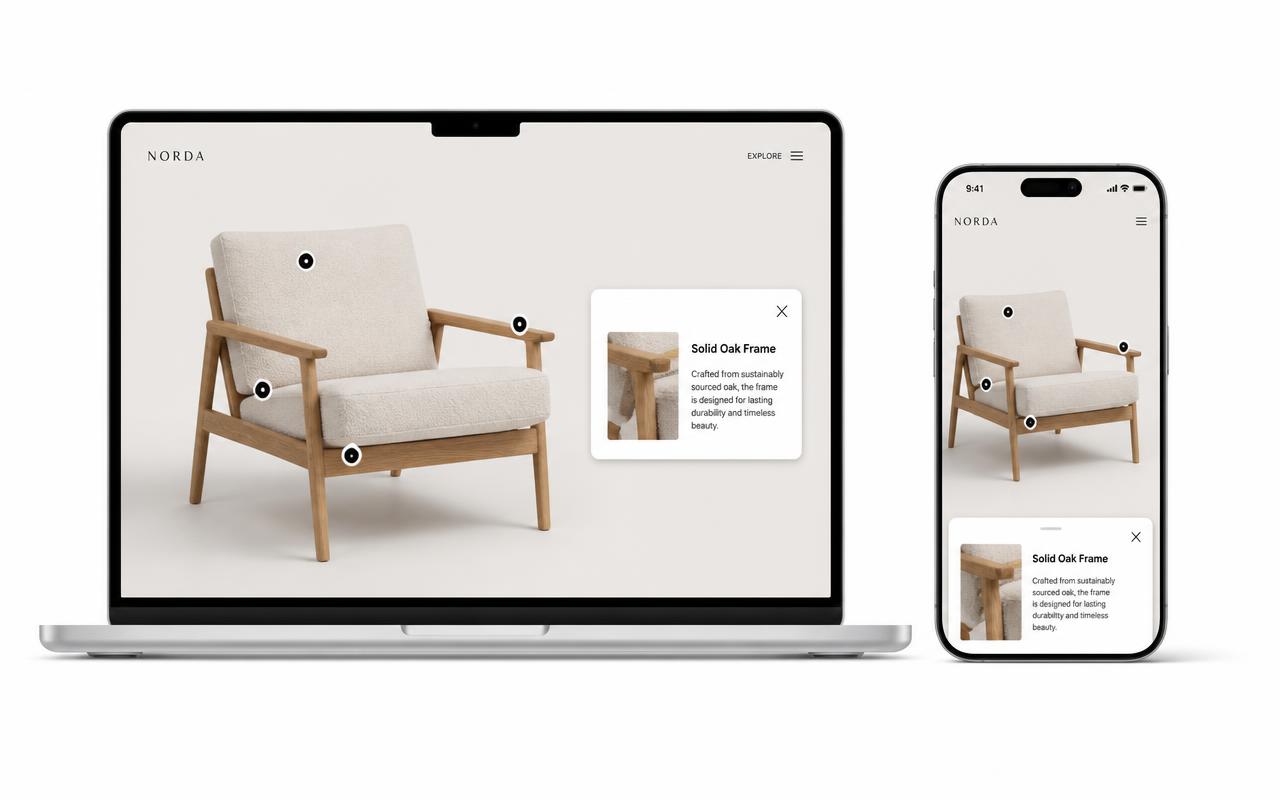
Add an interactive product diagram to a Wix page
Use this sample as a content plan for your own product page: explain a part, show a close-up, and give visitors a useful next step.
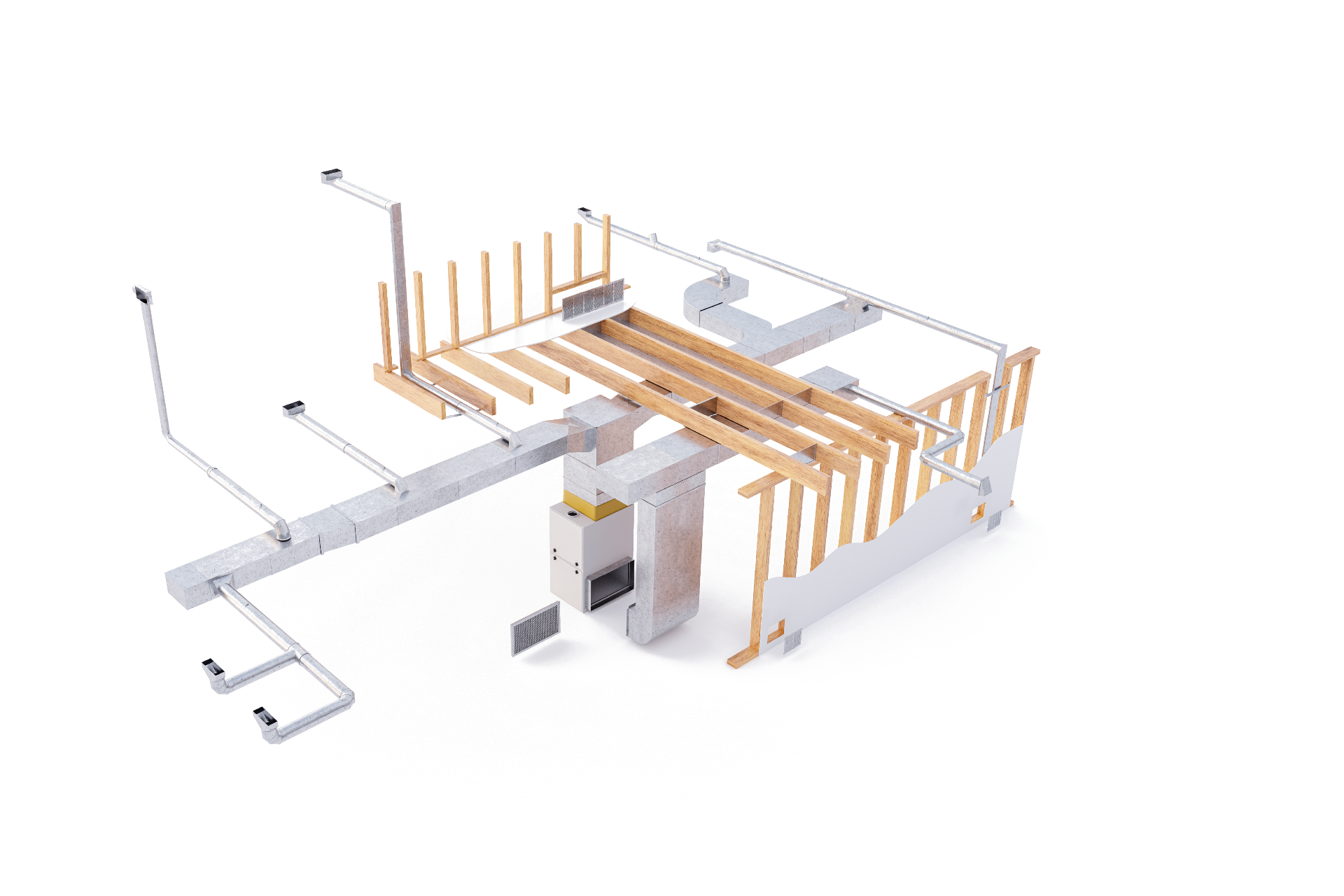
Select a dot to try the sample. Use your own artwork and details when creating your project.
Explore the full example →From your image to a published page
- Upload a product render with space around the parts you want to label.
- Create a Product dot for each component. Use its real name, a short explanation, and a link to the matching product or specification page.
- Publish the project and copy its embed code. In Wix Editor, choose Add Elements → Embed Code → Popular Embeds → Embed HTML, then Enter Code and Apply.
Check before sharing
- Resize the Wix embed element on desktop and in the mobile editor; its outer frame needs enough height for your image.
- Open the published Wix page and test a dot, its popup, and its destination link.
- Add a heading and a short product summary as ordinary Wix text next to the embed.
Platform requirements checked September 27, 2026. Wix’s official embed instructions
Setup at a glance
Wix · Embed HTML element (Wix Editor & Wix Studio)
- Time
- About 5 minutes
- Requirement
- Access to the Wix Editor or Wix Studio embed element
- Element
- Embed HTML / Custom Embed
- Plan needed
- HTML embed element
- Works in Studio
- Yes, all breakpoints
Step by step
How to add an interactive image to Wix
Five steps, no developer. Everything below happens once — after that you edit hotspots in Interactive Image and your Wix page updates on its own.
- 01
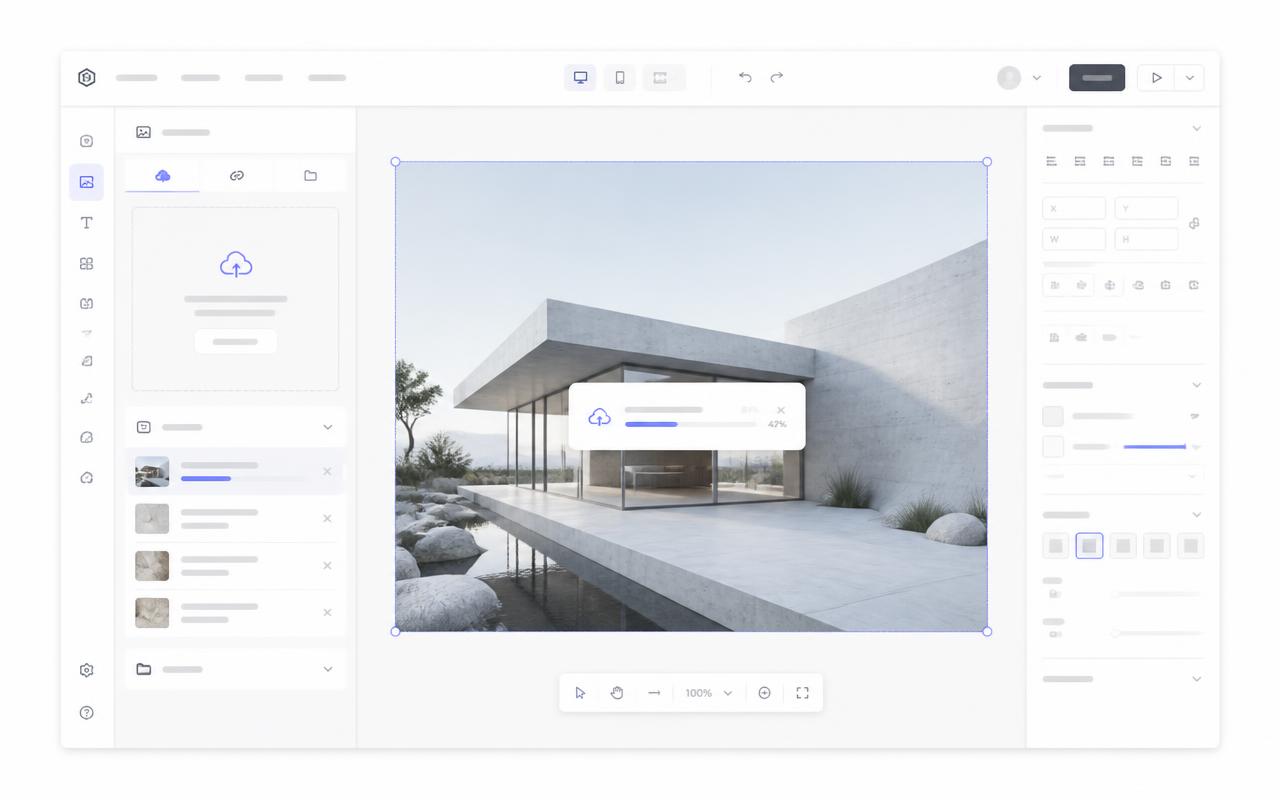
Upload your image
Create a new interactive image and drop in your product render, floor plan, diagram, or screenshot. Any aspect ratio works — nothing gets cropped.
- 02
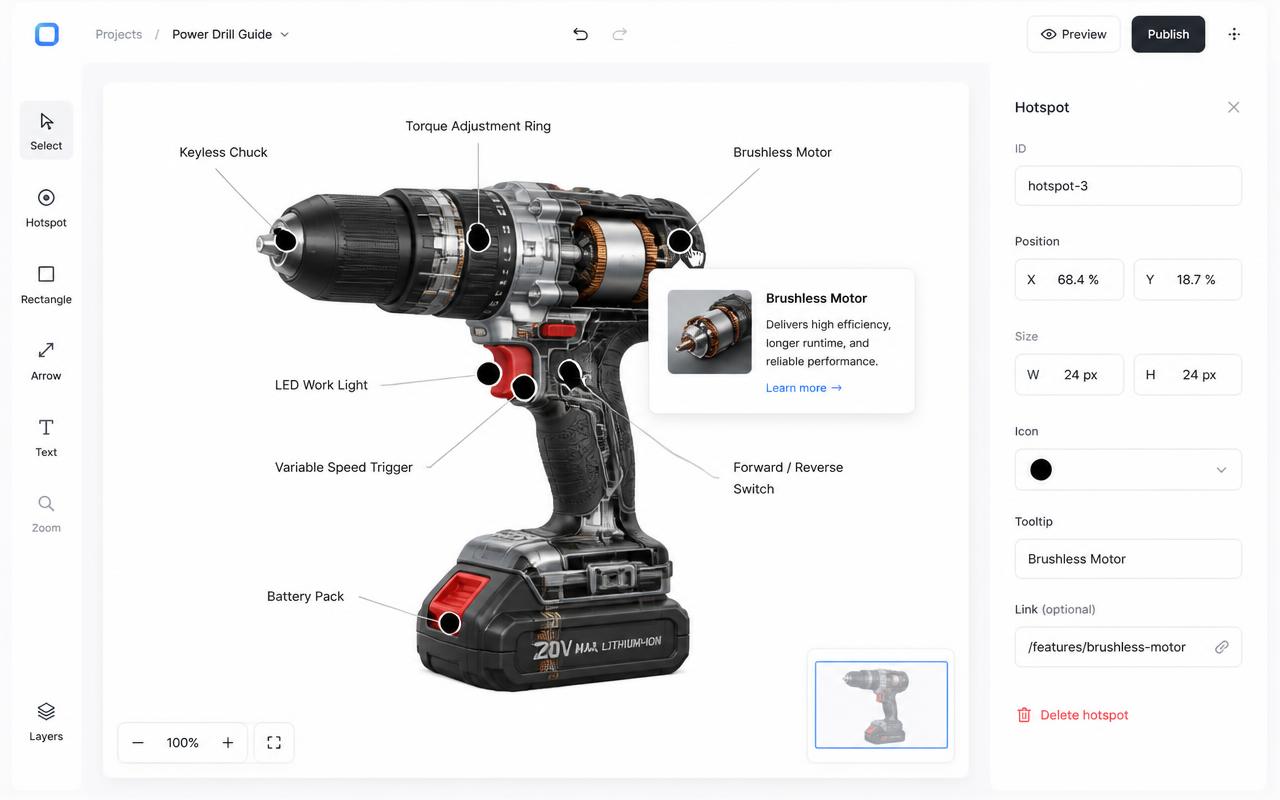
Place your hotspots
Choose Add new dot, then click the image to place it. Open Content to choose its type and add text, an image or video URL, and a destination link. Use Appearance for that dot and Map settings for shared defaults.
- 03
Copy the embed snippet
Open the Embed panel and hit Copy. The snippet is a responsive iframe with your image's aspect ratio already baked in.
<div style="position:relative;width:100%;padding-top:56.25%">
  <iframe src="https://interactiveimage.com/embed/YOUR-ID"
    style="position:absolute;inset:0;width:100%;height:100%;border:0"
    scrolling="no" loading="lazy"></iframe>
</div>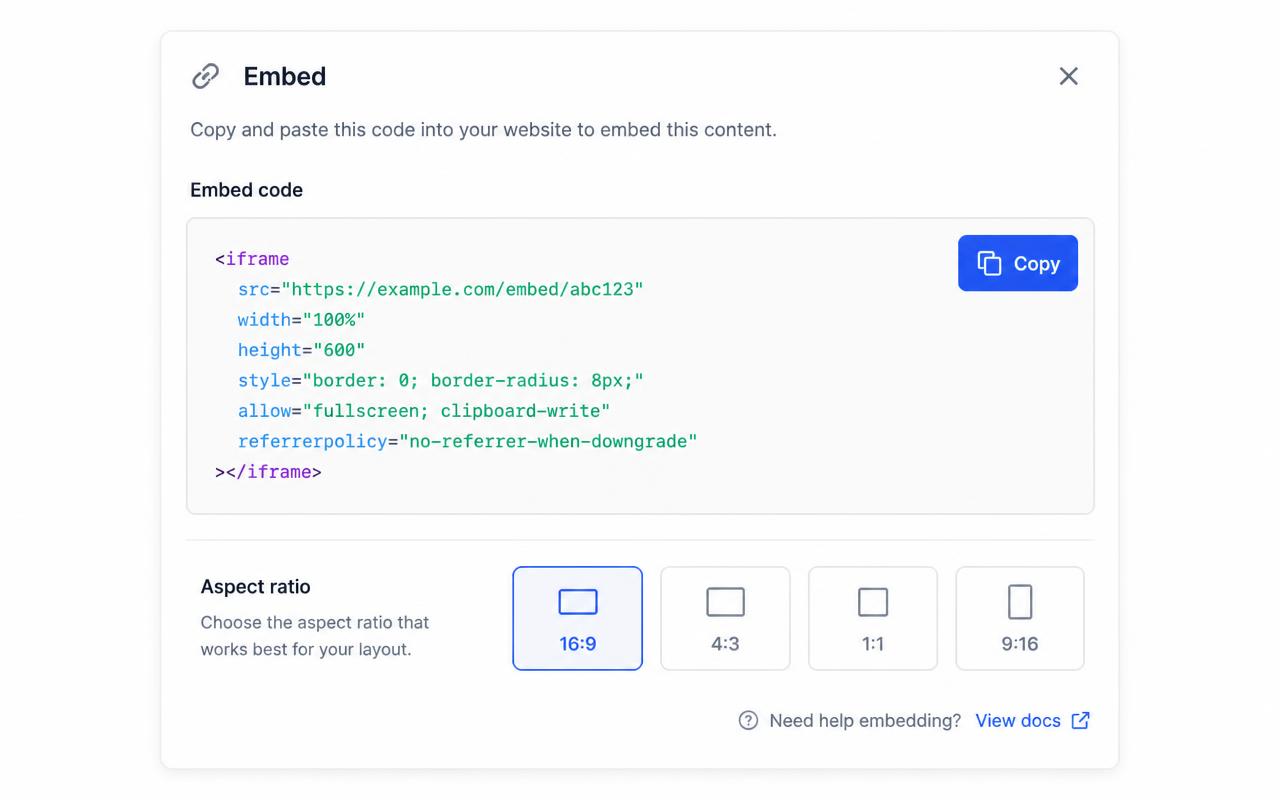
- 04
Paste it into Wix
In Wix Editor, choose Add Elements → Embed Code → Popular Embeds → Embed HTML. Click Enter Code, paste the snippet, and Apply. In Wix Studio, add an Embed HTML element from the Embed section.
- 05
Size it and publish
Stretch the embed element to the column width you want, then check the mobile breakpoint. Hit Publish — your hotspots are live and stay accurate on every screen size.
Troubleshooting
Fixes for the Wix issues people hit
Wix shows a "Sign in to continue" screen inside the embed
You pasted a private preview URL. The snippet must point at your public site domain (interactiveimage.com/embed/...). Copy the snippet again from the Embed panel after publishing.
Where do I choose the map type and edit a dot?
In the account dashboard, New Map offers Image map or Mapbox map. This choice is fixed after creation. For image maps, choose Upload Background Image and Add new dot; geographic maps offer address search and Import locations. Select a dot and use Content for its type, text, media, and links, Appearance for that dot, and Map settings for shared defaults. Enable embedding and copy the current snippet before publishing it on your website.
The embed looks cropped or has scrollbars
The iframe height doesn't match the image aspect ratio. Copy a fresh snippet from the Embed panel — it bakes the exact ratio into a padding-based wrapper — or set the iframe height to width ÷ aspect ratio.
Hotspots look slightly offset from the artwork
That happens when the container letterboxes the image. Interactive Image measures the rendered image box, so hotspots stay glued to the artwork — just make sure you didn't force a fixed height that differs from the image ratio.
Changes aren't showing on the live site
Save in the editor, then hard-refresh the published page. The embed always renders the latest saved version — you never need to re-paste the snippet unless the aspect ratio changed.
Continue exploring
Frequently asked questions
Do I need a paid Wix plan?
Wix's HTML embed element requires their premium plan. Once you have that, Interactive Image works out of the box.
Can I add multiple interactive images on one Wix page?
Yes. Each is a separate iframe embed with its own hotspots.
The embed works in the Wix editor but asks me to sign in on the published site. Why?
That happens when the snippet points at a private preview URL instead of the public site URL. Copy the snippet from the Embed panel again — it always uses the public interactiveimage.com address — then republish the Wix site.
Why is my Wix embed cropped or showing a scrollbar?
The element's height doesn't match the image's aspect ratio. Use the aspect-ratio wrapper from the Embed panel, or set the height to the element width divided by your image ratio.
Does it work in Wix Studio's responsive breakpoints?
Yes. Stretch the Embed HTML element to its container and let the snippet control height. Because hotspots are stored as percentages, they stay on target at every breakpoint without per-breakpoint tweaks.
Why does the Wix editor show a grey box with a puzzle icon instead of my image?
That is Wix's normal placeholder — the editor does not execute embedded HTML. Click Preview or view the published page and the interactive image renders as expected.
Do I have to resize the embed separately in the Wix mobile editor?
In the classic Wix editor, yes — the mobile editor keeps its own element size, so open it and size the element there too. In Wix Studio, inherited values usually handle it as long as you leave height on auto.
Can hotspots link to my Wix Stores product pages?
Yes. Set each hotspot's CTA to the full product URL, such as https://yoursite.com/product-page/item-name. Use absolute URLs — relative paths resolve against the embed rather than your Wix site.
Why is a popup near the edge of my image getting cut off?
Popups cannot render outside the iframe's bounds. Nudge edge hotspots slightly inward, or give the Wix element a little extra height so the card has room to open.
Does the Wix embed slow down my page?
The snippet is a single lazy-loaded iframe, so it does not block your Wix page from rendering. If the embed is your hero image, remove loading="lazy" so it starts loading immediately.
Need it built for you?
Big maps, bulk hotspots, custom designs or integrations, built by our team at Upcode.
Turn any image into a guided experience.
Free forever plan. Paste one iframe into your site and ship.
Create your interactive image