

Shoppable image maker
Make your product photos shoppable.
Tag every item in a lifestyle shot, lookbook, or room scene with a hotspot that shows the product photo, price, and a buy button — then embed it anywhere.
Free forever plan · No credit card · Works in Wix, Webflow, WordPress, Shopify, Squarespace
Shoppable hotspots
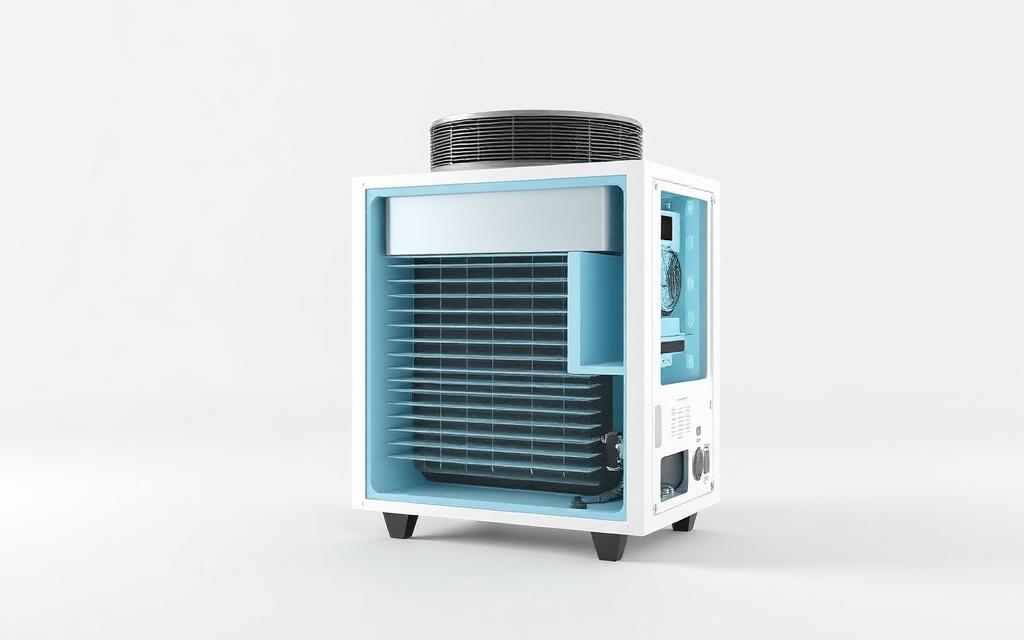
Place a dot on each product in the scene. Hovering or tapping opens a card with the product photo, name, and short description.
Buy button per dot
Each hotspot gets its own CTA label and product URL, so shoppers reach the right product page in one tap instead of hunting a collection grid.
Less friction, more discovery
Shoppers browse the way they already look at photos, which surfaces items a text listing buries and shortens the path from inspiration to cart.
What you get
- Product photo inside every hotspot card
- Per-hotspot buy link and CTA label
- Categories with filter chips for collections
- Numbered, pin, or dot markers to match your brand
- Responsive embed for Shopify, Wix, WordPress, and Webflow
- Free plan — no credit card
Build a Product card in the current editor
Add a dot, select Product inside Content, upload its image, and enter the product details and destination link. Prices in descriptions are maintained by you; checkout and inventory stay with your store. Preview the card and test its purchase link. Customize an individual marker in Appearance or use shared map defaults for a consistent collection.
How to make a shoppable image, step by step
- Upload the lifestyle photo. A room scene, outfit shot, or lookbook flat lay works best — anywhere products are visible and separated enough to tag one at a time.
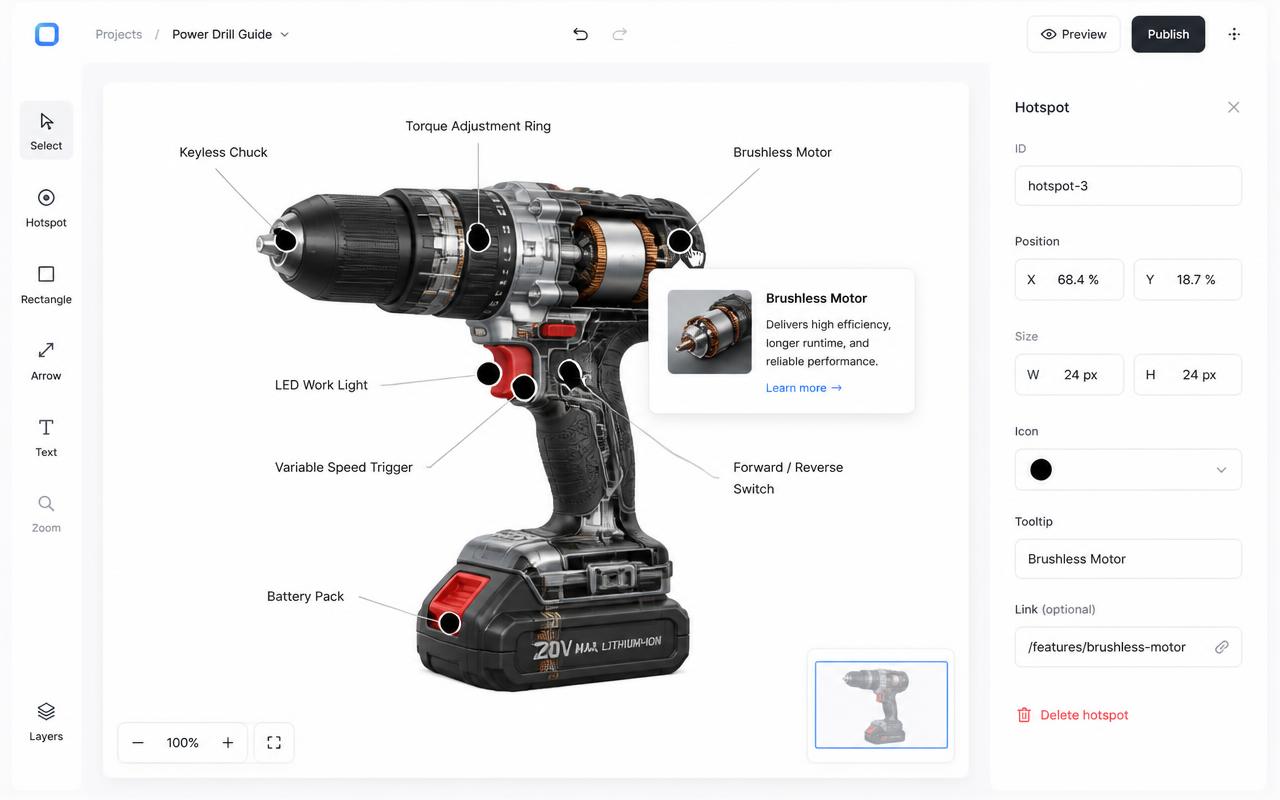
- Place a hotspot on each product. Click directly on the item; drag afterward to nudge it if the product shifts under a marker.
- Add name, price, and a product photo. Keep the popup copy short — it's a teaser, not the full product listing.
- Set the buy link. Point the CTA at the product page or an add-to-cart URL (see the platform section below).
- Embed on your store. Paste the iframe into a Shopify page section, a WordPress block, or any custom HTML area.
Linking hotspots to Shopify product and cart pages
Shopify shoppable images almost always use one of two link types in the hotspot's CTA field:
| Link type | URL pattern | Use when |
|---|---|---|
| Product page | https://yourstore.com/products/handle | Shopper needs to pick size, color, or read details first |
| Cart permalink | https://yourstore.com/cart/add?id=VARIANT_ID&quantity=1 | Single-variant item you want added straight to the cart |
Always use the absolute URL, including https:// and your store's domain — relative paths like /products/handle resolve against the embed's own domain, not your store, and will 404. The same pattern works for a Shopify Plus or headless storefront: swap in whatever URL that storefront serves for a product or cart action.
Linking hotspots on other platforms
Every platform reduces to the same rule — put the full product or checkout URL in the hotspot's CTA field:
- WooCommerce / WordPress: use the product page permalink, or a
?add-to-cart=IDquery URL if the theme supports it. - Wix Stores / Squarespace / Webflow: these don't expose cart-permalink query params reliably, so link to the product page and let the shopper add to cart there. See Interactive Image for Wix and for Squarespace.
- Any custom storefront: use whatever canonical product URL the storefront already generates — the hotspot CTA is just a link, so anything a normal anchor tag could open works.
Full embedding notes by platform are on Interactive Image for Shopify.
Hover vs tap on shoppable hotspots
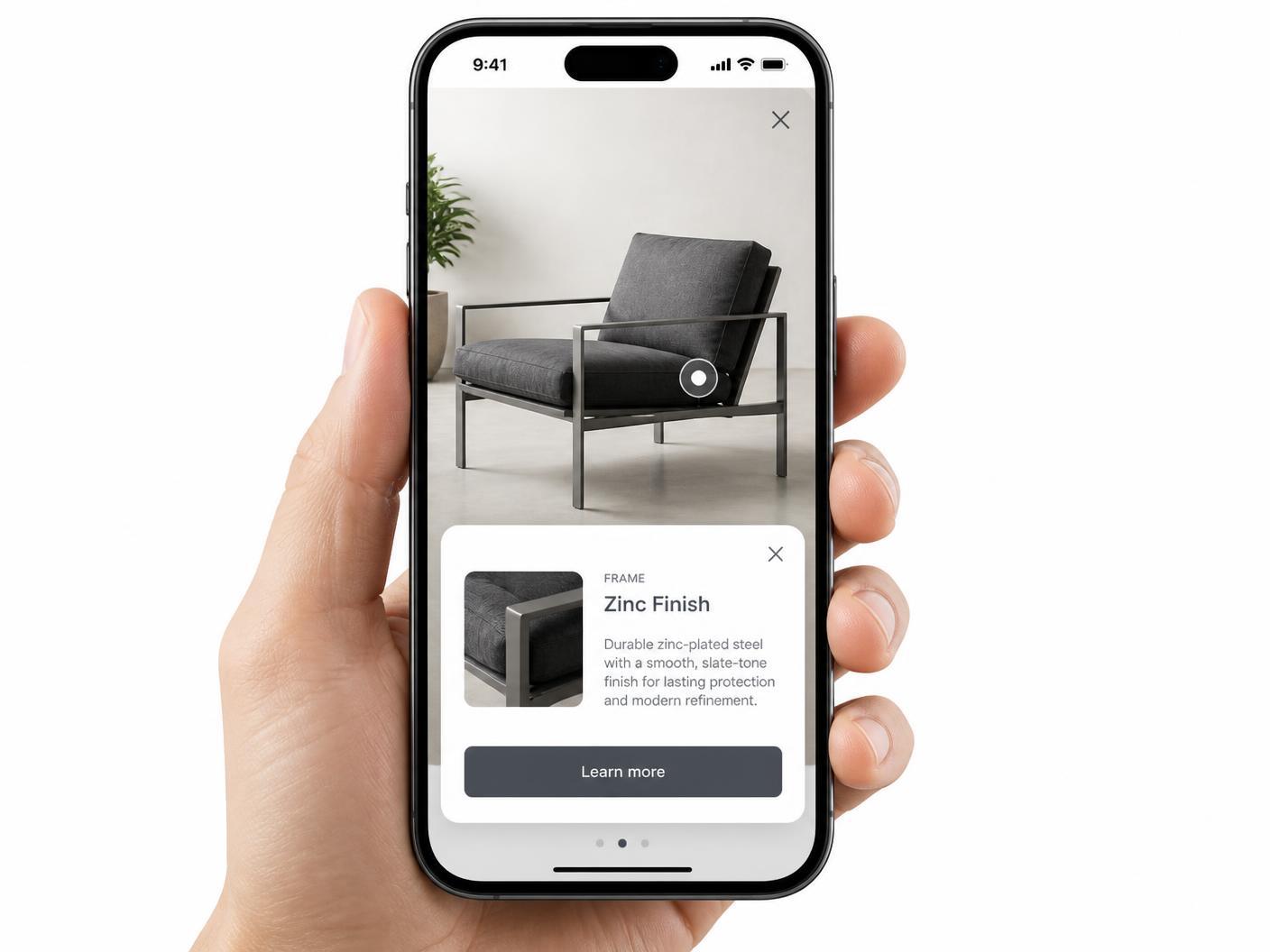
On desktop you can set hotspots to open on hover for a fast, glanceable browsing feel, or on click if you want the shopper to deliberately choose to see the product card. On phones and tablets — where most shoppable-image traffic actually happens — every hotspot opens on tap automatically, since hover has no equivalent on a touchscreen.
Mobile responsiveness for shoppable images
Hotspot positions are stored as percentages of the image, so a dot on a shopper's shoe in a lifestyle photo stays on the shoe whether the embed renders at 1400px on a laptop or 360px on a phone. The popup becomes a full-width card with the product photo, name, price, and buy button stacked for easy tapping.
Accessibility for shoppable hotspots
Hotspots are reachable with Tab and open with Enter or Space, and product names and prices render as real text inside the card rather than baked into an image, so screen readers announce them normally. Use a clear, descriptive alt text on the source photo describing the scene, not each product — the hotspot cards carry the per-product detail.
SEO implications of a shoppable iframe embed
Because the shoppable image is an iframe, the product names and prices inside its hotspot popups are not part of your page's own crawlable HTML. That's a neutral trade-off, not a penalty: keep your theme's normal product text, price, and structured data on the page as usual, and treat the shoppable image as a discovery layer on top of content that's already indexable. See image map SEO for more on how iframe embeds and page SEO interact.
Pricing and free plan limits
The free plan supports one saved map with a limited hotspot allowance and a small watermark on the published embed. Paid plans start at $9/month and remove the watermark — most stores upgrade once a shoppable image goes live on a real product or campaign page.
Frequently asked questions
Can I reuse one shoppable image across campaigns?
Yes. Paste the same iframe on any page — landing pages, blog posts, email-linked pages — and every copy stays in sync with the source image and its hotspots.
Can I update prices or links without re-embedding?
Yes. Edit the hotspot in the editor and save; every embed of that image updates without touching the page it lives on.
How do I link a hotspot to a Shopify product?
Set the CTA URL to the absolute product page link, e.g. https://yourstore.com/products/handle, or a cart permalink like /cart/add?id=VARIANT_ID for a direct add-to-cart.
Does it work with Wix, WordPress, and Webflow stores?
Yes, the embed is a standard iframe that drops into any embed or custom HTML block, including Wix, WordPress/WooCommerce, and Webflow.
Is it mobile-friendly?
Yes, hotspots are percentage-positioned and popups become full-width cards on phones.
Does the iframe hurt page SEO?
No. Keep normal product text and pricing on the page itself; treat the shoppable image as an added discovery layer.
Is it free?
Yes, with a watermark. Paid plans start at $9/month and remove it.
Need it built for you?
Big maps, bulk hotspots, custom designs or integrations, built by our team at Upcode.
Turn any image into a guided experience.
Free forever plan. Paste one iframe into your site and ship.
Create your interactive image