

How do I add hotspots to an image?
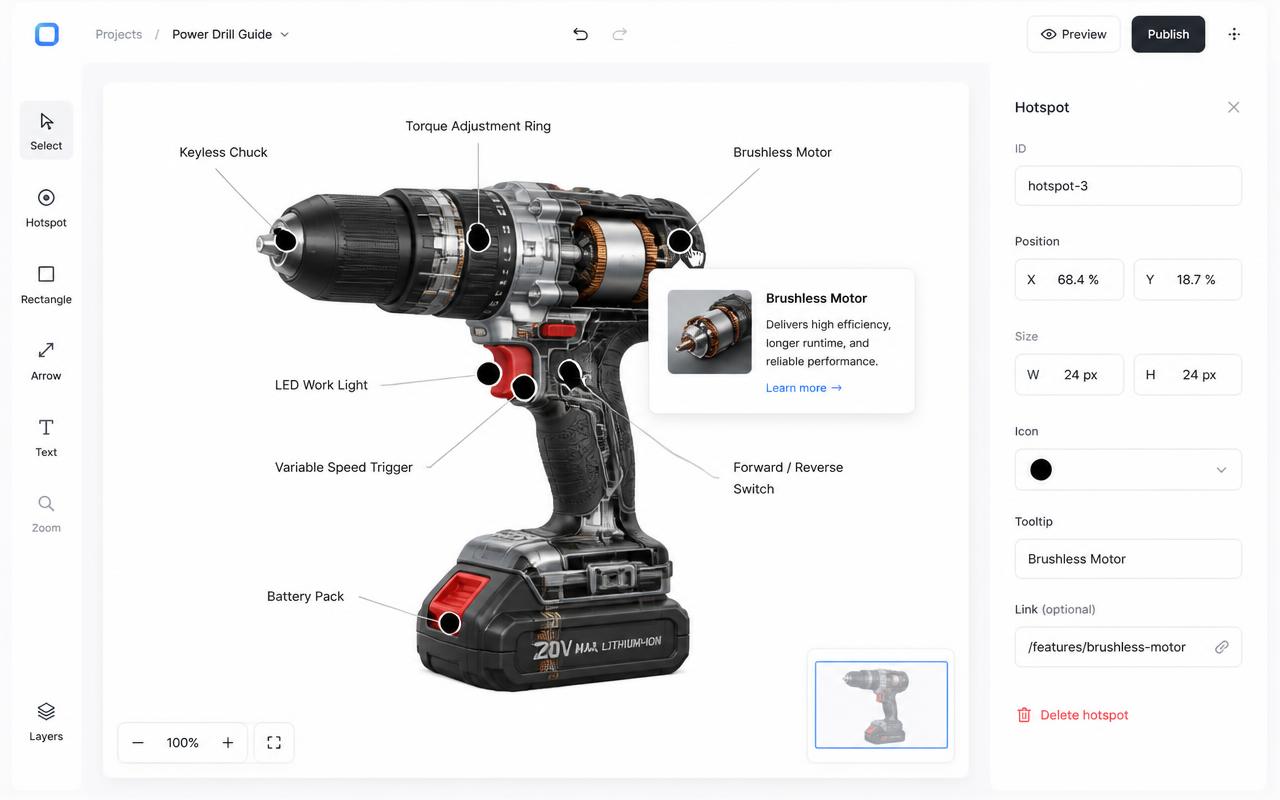
Open the image in a hotspot tool, click each spot to drop a marker, and fill in the card that opens: title, description, optional media and a link. Interactive Image saves each marker as a percentage of the image, so hotspots line up at every screen size, and outputs one embed.
Add hotspots to any image in minutes.
Upload a photo or diagram, drop hotspots exactly where they belong, and publish a responsive embed to any website.
Try the hotspot generator
Place hotspots on any image and see exactly how the cards behave on hover and keyboard focus. Publishing and embed codes come with a free account.

This is a live demo — nothing here is published yet. Create a free account to publish your image and get a one-line embed code for Wix, Webflow, WordPress, Squarespace or plain HTML, with hosted images, images and video in the cards, CTA buttons and edits that go live instantly. Free includes 1 published image with the Interactive Image badge; Pro removes the badge and unlocks white-label embeds.
Free forever plan · No credit card · Works in Wix, Webflow, WordPress, Shopify, Squarespace
Dot, number, or pin
Choose a marker style at the image level. Numbered markers auto-order as you place them.
Rich popups
Every hotspot can carry a title, description, image, video, and a call-to-action button.
Categories
Group hotspots into categories and give visitors filter chips to explore.
What you get
- Flexible hotspot types with per-dot styling
- Guided tour with prev/next navigation
- Keyboard arrows and escape close
- Per-hotspot color overrides
- Publish once, embed everywhere
How the hotspot image generator works, step by step
Every image on the site is built the same four-step way, whether it's a product photo, a diagram, or a floor plan:
- Upload the image. JPG, PNG, or WebP, any aspect ratio.
- Click to place hotspots. Each click drops a marker at that exact point; drag it afterward to nudge the position.
- Write the popup content. Add a title, short description, optional image or video, and an optional CTA button and link.
- Publish and copy the iframe. Paste the snippet into your site's HTML, embed block, or CMS field.
Need a fuller walkthrough with screenshots at every step? See how to make an interactive image or how to add hotspots to an image.
Hover, click, or tap: choosing the right open behavior
Hotspots support two desktop trigger modes and one universal mobile behavior:
| Device | Trigger | Best for |
|---|---|---|
| Desktop, hover mode | Mouse enters the hotspot | Quick previews, product diagrams with lots of labels |
| Desktop, click mode | Mouse click | Longer descriptions, video, or a CTA the visitor should read fully |
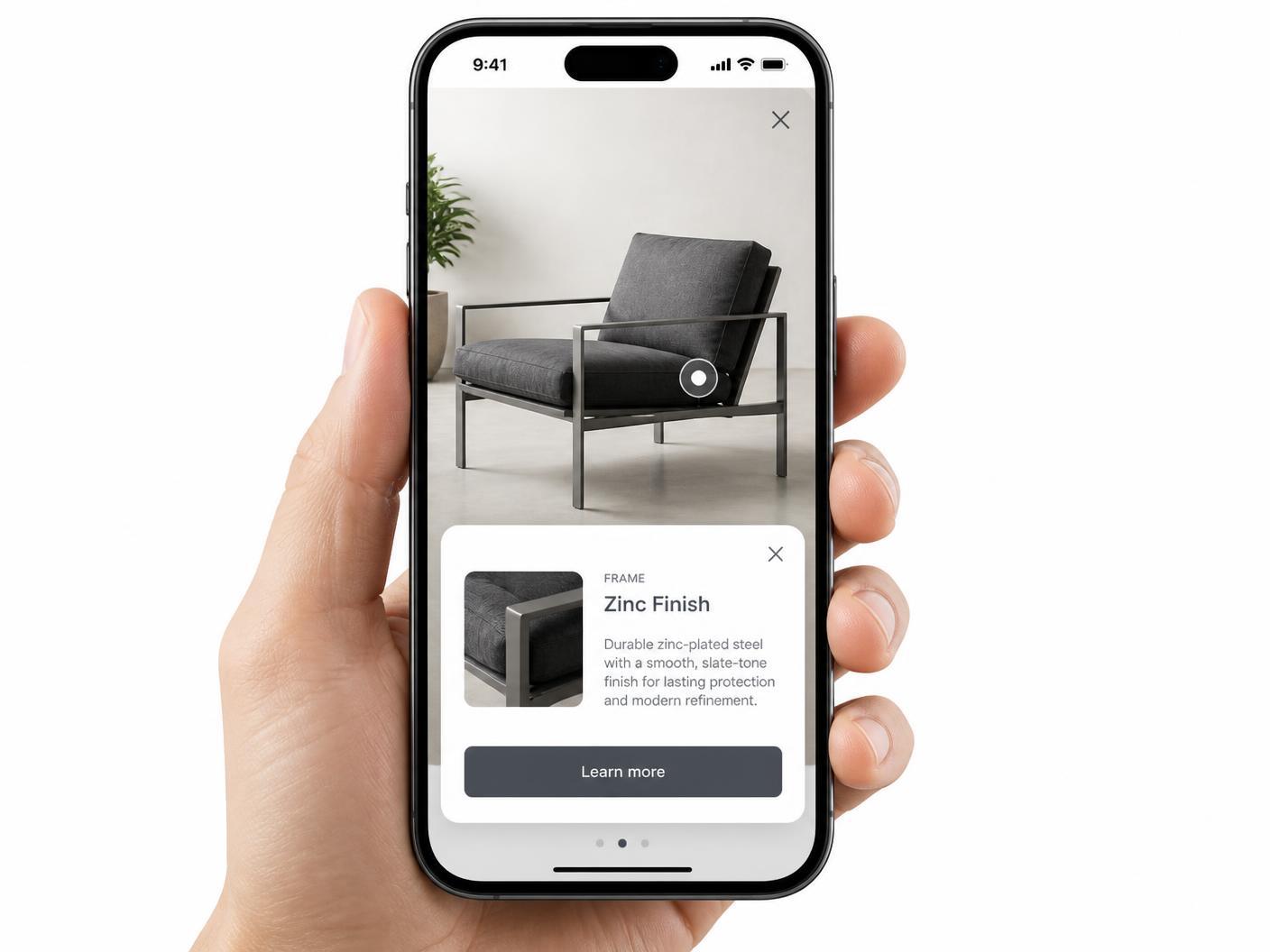
| Touch (phone/tablet) | Tap | Always — hover doesn't exist on touch, so tap is automatic |
Pick hover for glanceable labels and click for anything you want a visitor to deliberately open. Either way, the embed detects touch input and switches to tap automatically — there's nothing to configure per device.
Hotspot images on mobile
Hotspot positions are stored as percentages of the image, not fixed pixels, so a marker at the center of a diagram stays at the center whether the embed is 1200px wide on a desktop monitor or 340px wide on a phone. Popups reflow into a full-width card on small screens instead of a floating tooltip, so long descriptions and images stay readable without zooming.
Accessibility and keyboard navigation
Hotspots sit in normal tab order, so keyboard users can move between them with Tab and open a popup with Enter or Space. Escape closes the active popup and returns focus to the hotspot that opened it. For best results, keep hotspot titles concise and set a descriptive alt text on the source image — see accessible image maps for a deeper checklist that also applies here.
Do iframe embeds affect SEO?
The embed is a single iframe, so search engines treat the hotspot content inside it separately from your page's own HTML. That means the popup text won't directly appear in your page's indexed content — but it also means the iframe can't hurt your page's ranking. The practical takeaway: write real, descriptive text on the page around the embed (what the image shows, why it matters) and give the source image a proper alt attribute where it's referenced. More detail in image map SEO.
Free plan vs Pro
The free plan includes one saved map with a limited hotspot allowance and a small badge on the published embed. Paid plans start at $9/month with unlimited hotspots and remove the badge when a hotspot image goes on a page you don't want branded. There's no credit card required to start on the free plan.
Frequently asked questions
How many hotspots can I add?
Free has a limited hotspot allowance shown in your account. Pro removes the hotspot cap.
Can I reorder hotspots for a guided tour?
Yes. Reorder them in the editor and visitors can walk through them with the prev/next arrows or the keyboard.
What image file types and sizes work best?
JPG, PNG, and WebP are all supported. Keep the source image under a few megabytes and at least 1000px wide for crisp popups without a slow upload.
Do hotspots respond to hover, click, or tap?
You choose hover or click for desktop; touch devices always use tap since hover doesn't apply there.
Are hotspot images accessible and keyboard-friendly?
Yes. Hotspots are tab-focusable, open with Enter/Space, and close with Escape.
Does an iframe embed hurt SEO?
No, but it also doesn't add indexable text to your page. Keep descriptive copy and alt text around the embed.
Is this free?
Yes, with a watermark on the free plan. Paid plans start at $9/month and remove it.
Need it built for you?
Big maps, bulk hotspots, custom designs or integrations, built by our team at Upcode.
Turn any image into a guided experience.
Free forever plan. Paste one iframe into your site and ship.
Create your interactive image