

How do I add image hotspots in Squarespace?
Edit the page, add a Code Block where the image should sit, and paste the iframe snippet from Interactive Image. It works on Squarespace 7.0 and 7.1 including fluid engine, on a plan that supports iframe code: Core, Plus, Advanced, or legacy Business/Commerce, with no plugin — and hotspots stay aligned on mobile because positions are percentages.
For Squarespace
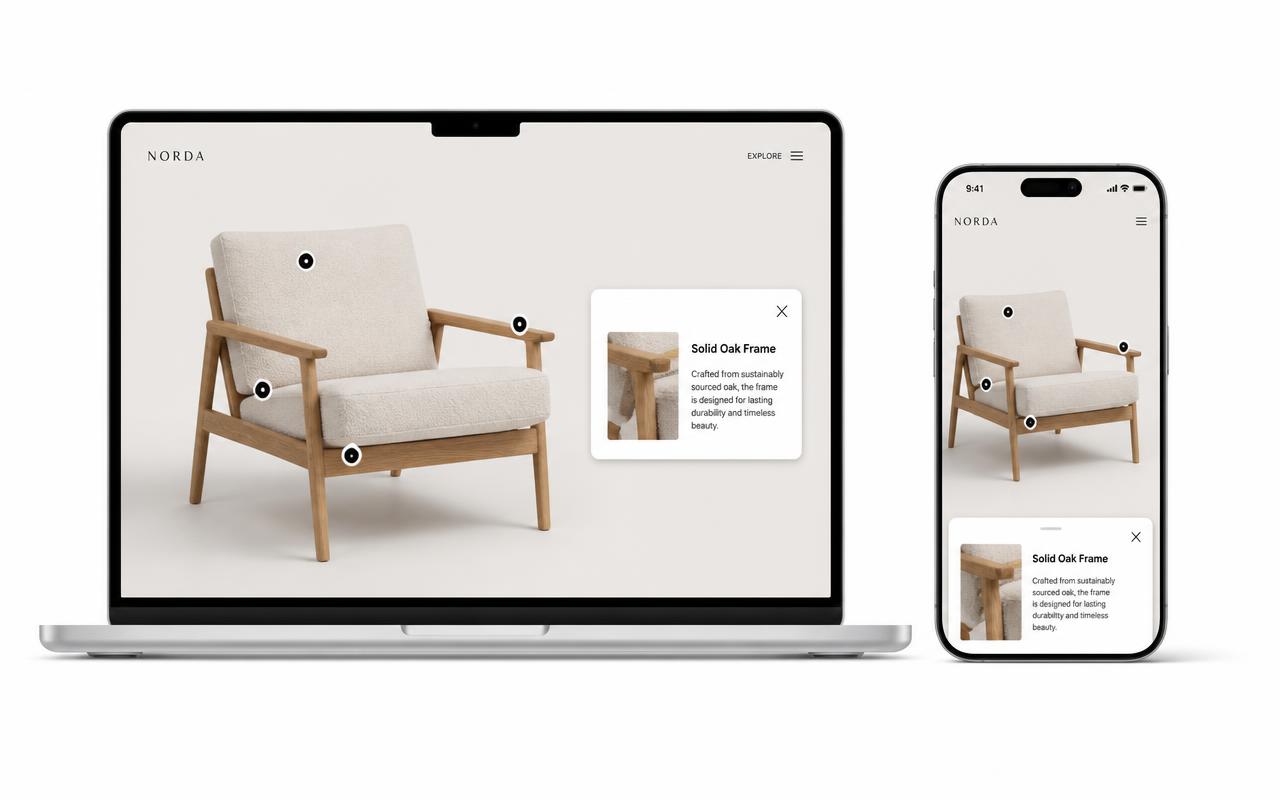
Clickable image hotspots on Squarespace, no plugin.
Drop one iframe into a Squarespace Code Block and turn a photo, floor plan, menu, or diagram into something visitors can explore and click.
Free forever plan · No credit card · Works in Wix, Webflow, WordPress, Shopify, Squarespace
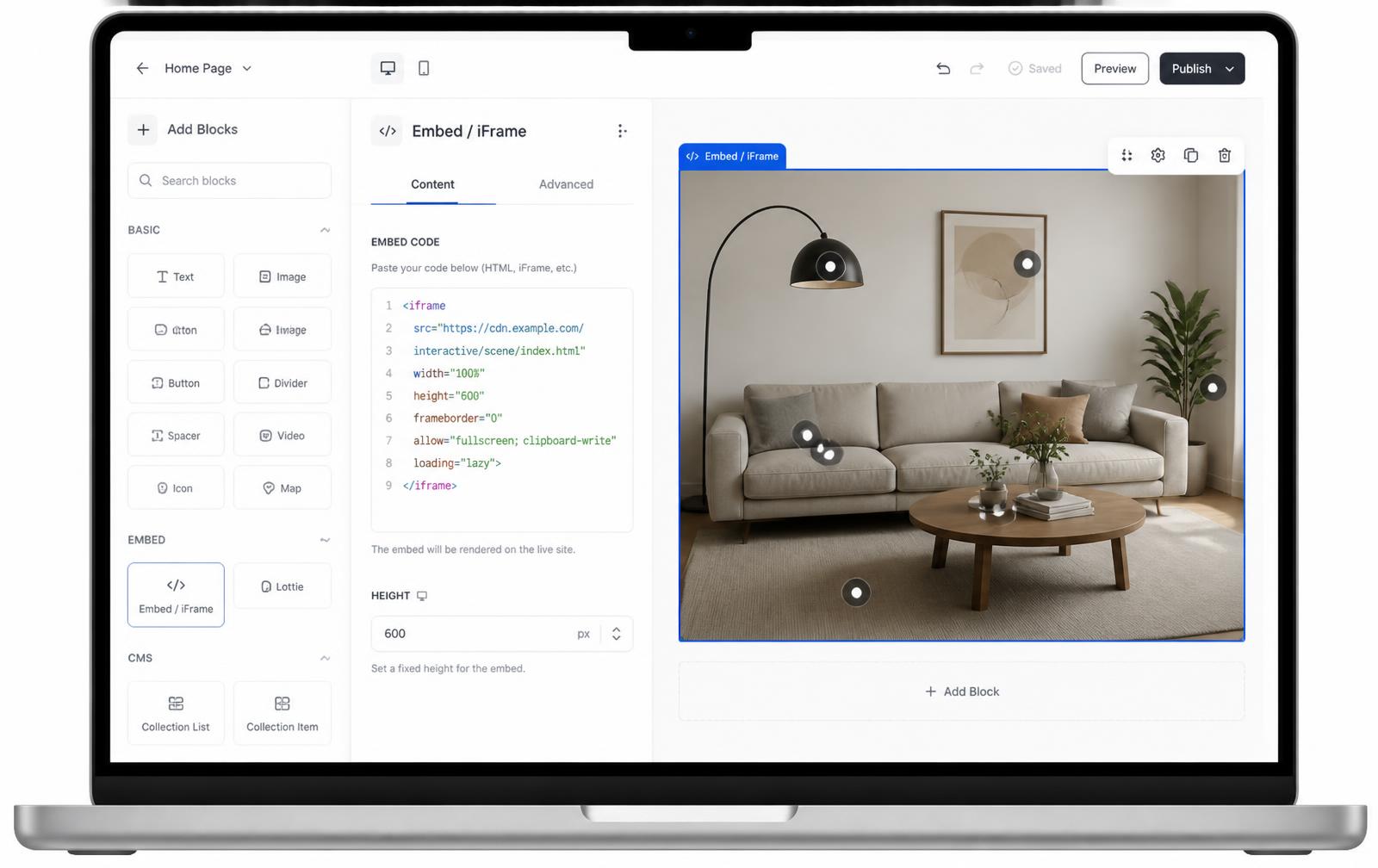
Build your Squarespace hotspot image here
Upload your image and click to place hotspots. Publish with a free account to get the snippet you drop into a Squarespace Code Block.
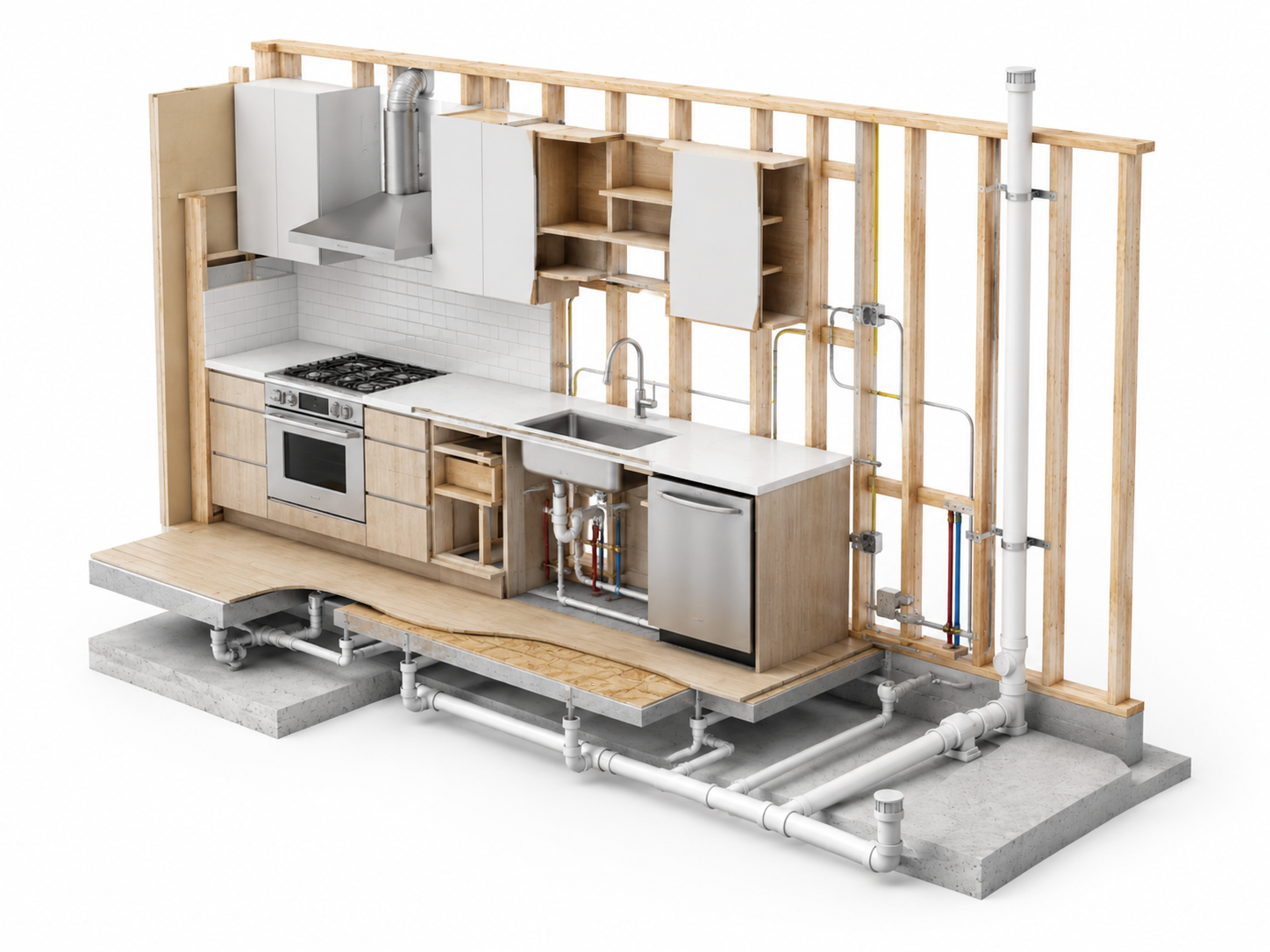
This is a live demo — nothing here is published yet. Create a free account to publish your image and get a one-line embed code for Wix, Webflow, WordPress, Squarespace or plain HTML, with hosted images, images and video in the cards, CTA buttons and edits that go live instantly. Free includes 1 published image with the Interactive Image badge; Pro removes the badge and unlocks white-label embeds.
Code Block, not a template hack
No custom CSS injection or template edits — a standard Code Block is all you need.
Fluid-engine friendly
Percentage-based hotspots resize correctly as Squarespace's layout engine changes column widths across breakpoints.
Works in 7.0 and 7.1
The Code Block behaves the same in both editors, so this works regardless of which Squarespace version your site runs.
What you get
- No app store purchase or extension required
- Works inside portfolio, product, and blog page types
- Popups support images, video, and buttons
- Percentage positioning survives Squarespace's responsive grid
- Re-editing hotspots updates every page instantly
- Same embed works in Code Injection for site-wide use
Step by step in the Squarespace editor
- Build the image in Interactive Image and copy the iframe from the Embed panel. It already includes your image's aspect ratio.
- In Squarespace, open Pages, click the page, and press Edit.
- Hover where the image should go and click the insert point (the +), then choose Code.
- Clear the sample
<p>content, confirm the mode dropdown says HTML, and paste the snippet. - Click Apply, drag the block to the width and height you want, then Save.
- Open the live page (not the editor preview) and test a hotspot on desktop and on a phone.
The snippet itself is one element — there is nothing else to install on the page:
<iframe
  src="https://interactiveimage.com/embed/your-map-id"
  style="width:100%;border:0;aspect-ratio:1.6;overflow:hidden;display:block;"
  scrolling="no"
  loading="lazy"
  title="Interactive image"
></iframe>
Code Block vs Embed Block vs Code Injection
| Option | Use it when | Watch out for |
|---|---|---|
| Code Block | One image on one page — the default choice | Iframe-capable plan required; may show a placeholder in-editor |
| Embed Block | Known providers such as YouTube or Spotify | Picky about raw iframe HTML; can strip attributes |
| Code Injection | Site-wide placement, header or footer | Applies everywhere; harder to undo per page |
For a custom embed like this one the Code Block is the reliable path in both Squarespace versions.
Troubleshooting the four issues people actually hit
- The block shows raw code. The mode is set to Markdown. Switch it to HTML in the block's dropdown.
- Nothing appears in the editor. Expected. Squarespace renders many Code Blocks as a grey placeholder while editing — save and view the live page.
- The embed is clipped or scrolls. The block is shorter than the embed. Drag the block taller and check the aspect ratio in the snippet matches the image.
- Hotspots look off-centre on mobile. Usually a wrapper forcing a fixed height. Remove any height you added and let the aspect ratio drive it — the positioning maths is explained in why hotspots drift on mobile.
What Squarespace sites use this for
- Designers and architects — annotated project photos and clickable floor plans in a portfolio.
- Venues and event spaces — a site or venue map with capacities and enquiry links.
- Retail and makers — shoppable lifestyle photos pointing at Squarespace product pages.
- Hospitality — property maps and menus, covered in hospitality use cases.
Keeping the page indexable
Search engines do not credit your page with the text inside an iframe, so treat the embed as the interaction and keep the substance in Squarespace text blocks: a real H1, a paragraph explaining what the image shows, and a short list of the same rooms, products, or locations you hotspotted. That gives crawlers something to rank and gives visitors a fallback. More detail in SEO for interactive images.
Build this with your own content
Add a clickable floor plan to Squarespace
Give a property or venue page a room-by-room guide, with photos and inquiry links attached to the plan.
Select a dot to try the sample. Use your own artwork and details when creating your project.
Explore the full example →From your image to a published page
- Export your floor plan as a PNG or JPG and upload it as an Image map.
- Add a dot for each room with its name, measurements, and a photo. Link to your existing inquiry or booking page; update availability manually.
- Publish, copy the embed code, and paste it into a Squarespace Code Block in HTML mode with Display Source turned off.
Check before sharing
- Iframe code requires Core, Plus, or Advanced, or a legacy Business or Commerce plan.
- Save and check the live page outside the editor. A code placeholder while editing does not necessarily mean the embed is broken.
- Check the block height in desktop and mobile layouts. Add a normal text summary of the rooms below the plan.
Platform requirements checked September 27, 2026. Squarespace’s official embed instructions
Setup at a glance
Squarespace · Code Block on any 7.1 page
- Time
- About 5 minutes
- Requirement
- Iframe support: Core, Plus, Advanced, or legacy Business/Commerce
- Block
- Code (HTML)
- Plan needed
- Core+ or legacy Business/Commerce
- Version
- 7.0 and 7.1
Step by step
How to add an interactive image to Squarespace
Five steps, no developer. Everything below happens once — after that you edit hotspots in Interactive Image and your Squarespace page updates on its own.
- 01
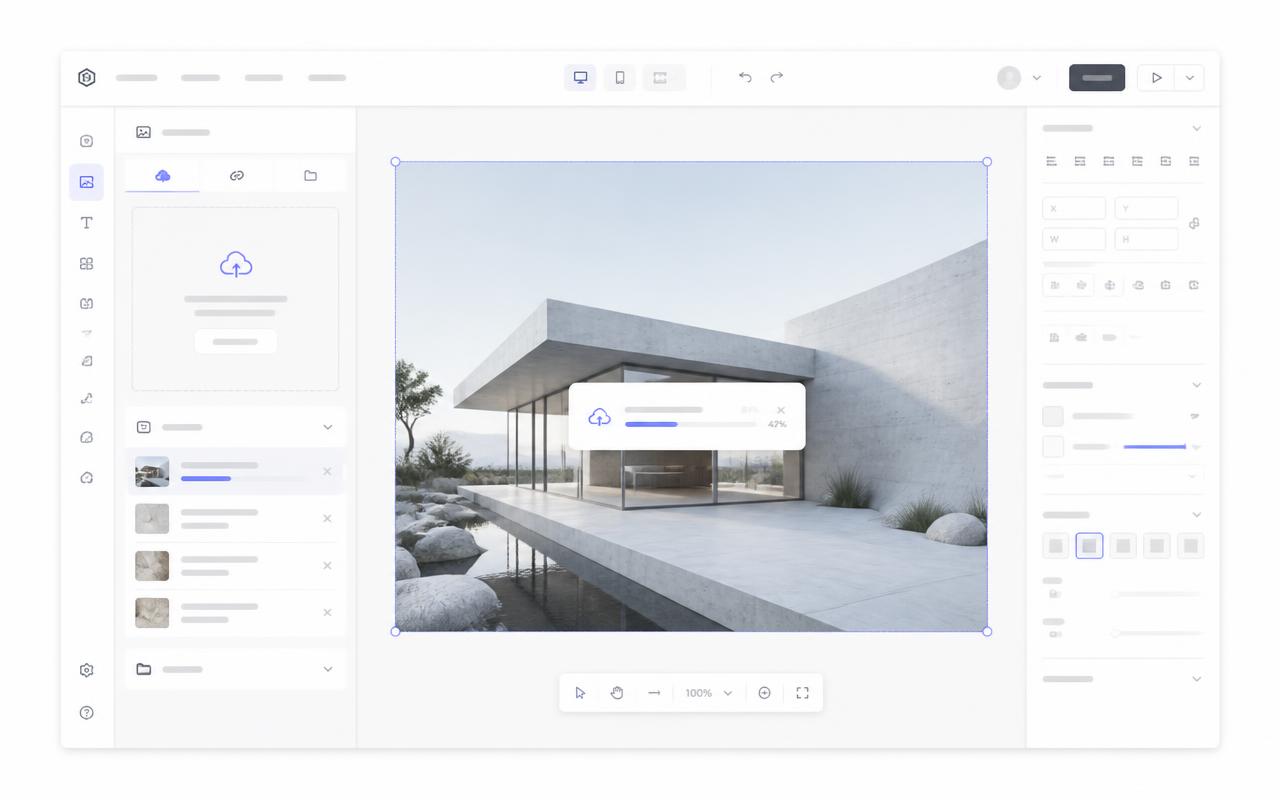
Upload your image
Create the interactive image and upload your visual.
- 02
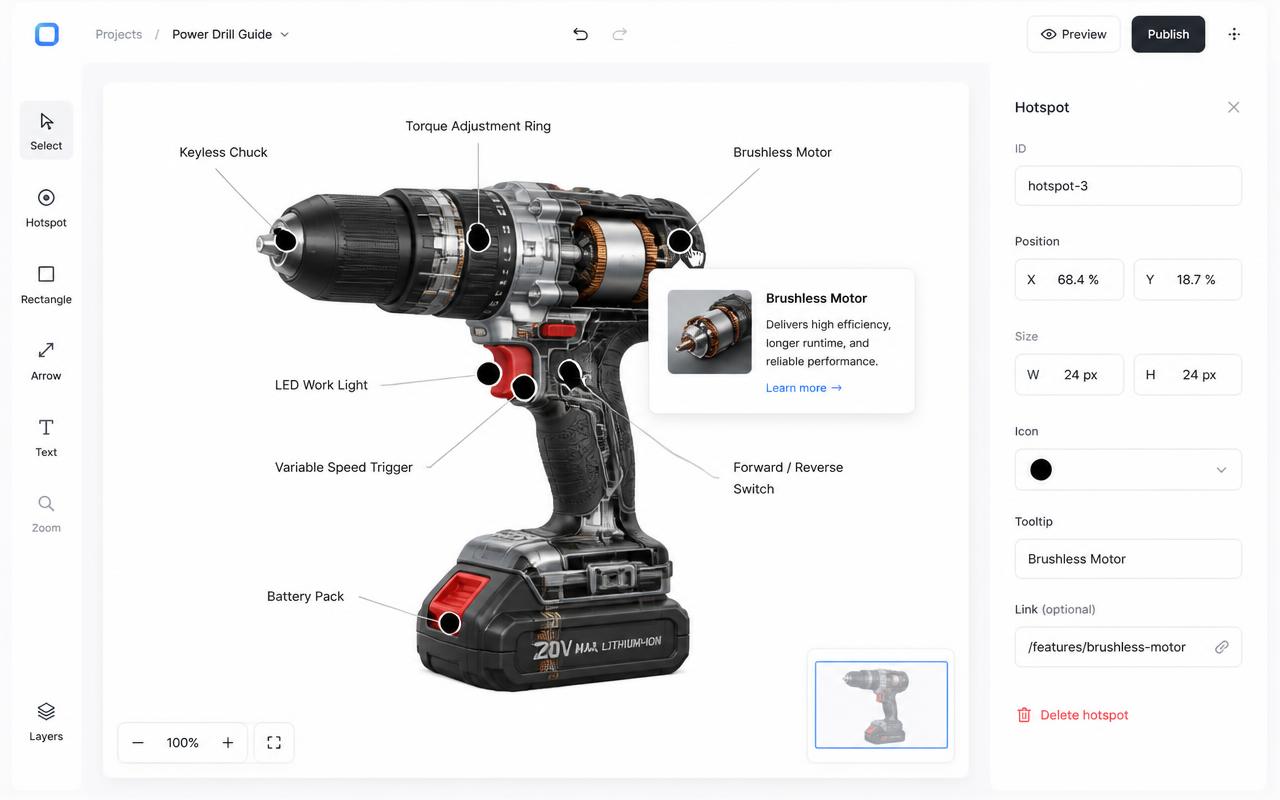
Place and write hotspots
Drop dots on the map, plan, or product and write the card content for each one.
- 03
Copy the snippet
Copy the responsive iframe from the Embed panel.
<div style="position:relative;width:100%;padding-top:56.25%">
  <iframe src="https://interactiveimage.com/embed/YOUR-ID"
    style="position:absolute;inset:0;width:100%;height:100%;border:0"
    scrolling="no" loading="lazy"></iframe>
</div>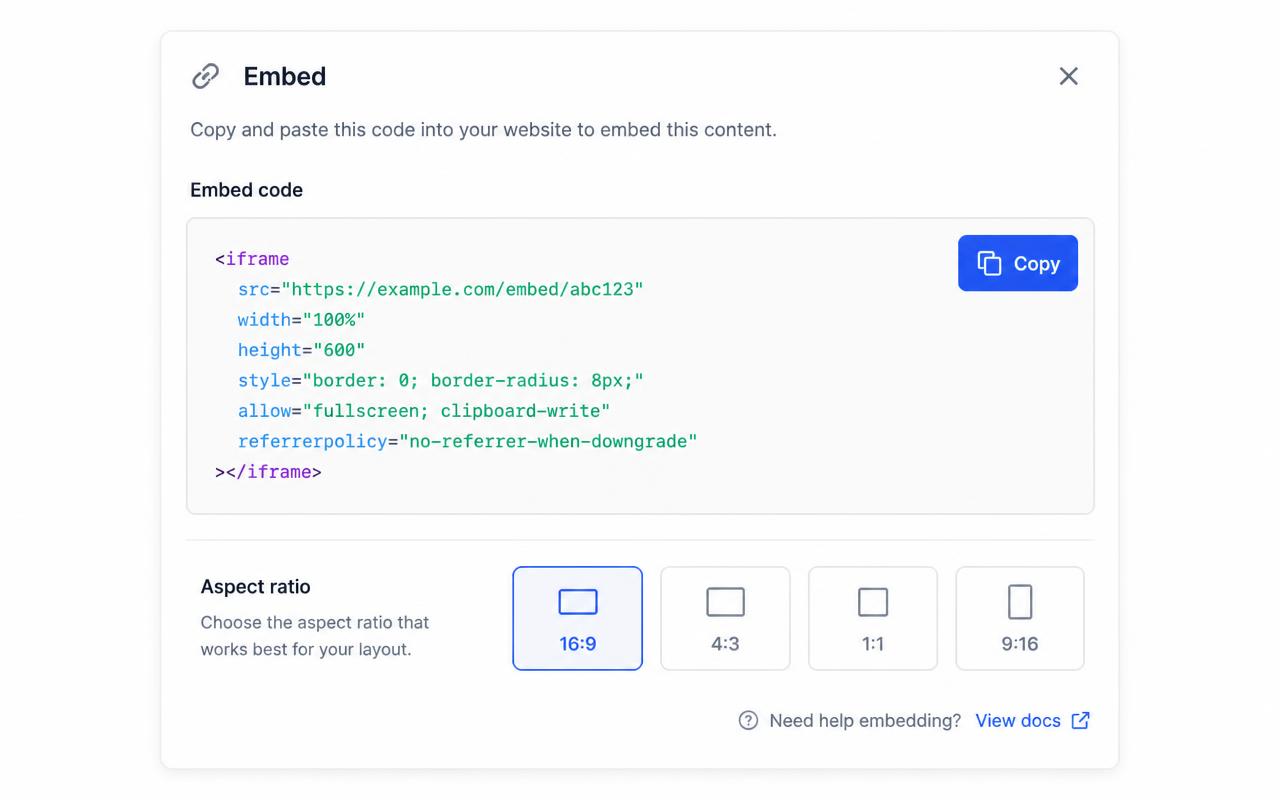
- 04
Insert a Code Block
Click an insert point, choose Code, delete the placeholder, and paste the snippet. Leave the block type set to HTML and make sure Display Source is off.
- 05
Save and check mobile
Save the page, then use Squarespace's mobile preview. The embed scales to the block width automatically.
Troubleshooting
Fixes for the Squarespace issues people hit
Squarespace shows a grey "Code Block" placeholder while editing
That's expected — Squarespace disables live iframes in the editor. Exit edit mode or view the live page to see the embed.
Code Block isn't available
Code blocks exist on all plans, but iframe support requires Core, Plus, Advanced, or legacy Business/Commerce. If your plan lacks iframe support, link a button to your published project instead.
Where do I choose the map type and edit a dot?
In the account dashboard, New Map offers Image map or Mapbox map. This choice is fixed after creation. For image maps, choose Upload Background Image and Add new dot; geographic maps offer address search and Import locations. Select a dot and use Content for its type, text, media, and links, Appearance for that dot, and Map settings for shared defaults. Enable embedding and copy the current snippet before publishing it on your website.
The embed looks cropped or has scrollbars
The iframe height doesn't match the image aspect ratio. Copy a fresh snippet from the Embed panel — it bakes the exact ratio into a padding-based wrapper — or set the iframe height to width ÷ aspect ratio.
Hotspots look slightly offset from the artwork
That happens when the container letterboxes the image. Interactive Image measures the rendered image box, so hotspots stay glued to the artwork — just make sure you didn't force a fixed height that differs from the image ratio.
Changes aren't showing on the live site
Save in the editor, then hard-refresh the published page. The embed always renders the latest saved version — you never need to re-paste the snippet unless the aspect ratio changed.
Continue exploring
Frequently asked questions
Does this work on the Squarespace mobile app editor?
Add the Code Block from a desktop browser. Once it is saved it displays fine on mobile, but pasting HTML is far easier on desktop.
Can I have several interactive images on one page?
Yes. Add a separate Code Block for each one; they do not interfere with each other.
Need it built for you?
Big maps, bulk hotspots, custom designs or integrations, built by our team at Upcode.
Turn any image into a guided experience.
Free forever plan. Paste one iframe into your site and ship.
Create your interactive image