

For Canva
Make a Canva design interactive — with real clickable hotspots.
Canva is excellent at the artwork and has no hotspot layer. Export the design once, drop hotspots on it here, and embed a live clickable version anywhere.
Free forever plan · No credit card · Works in Wix, Webflow, WordPress, Shopify, Squarespace
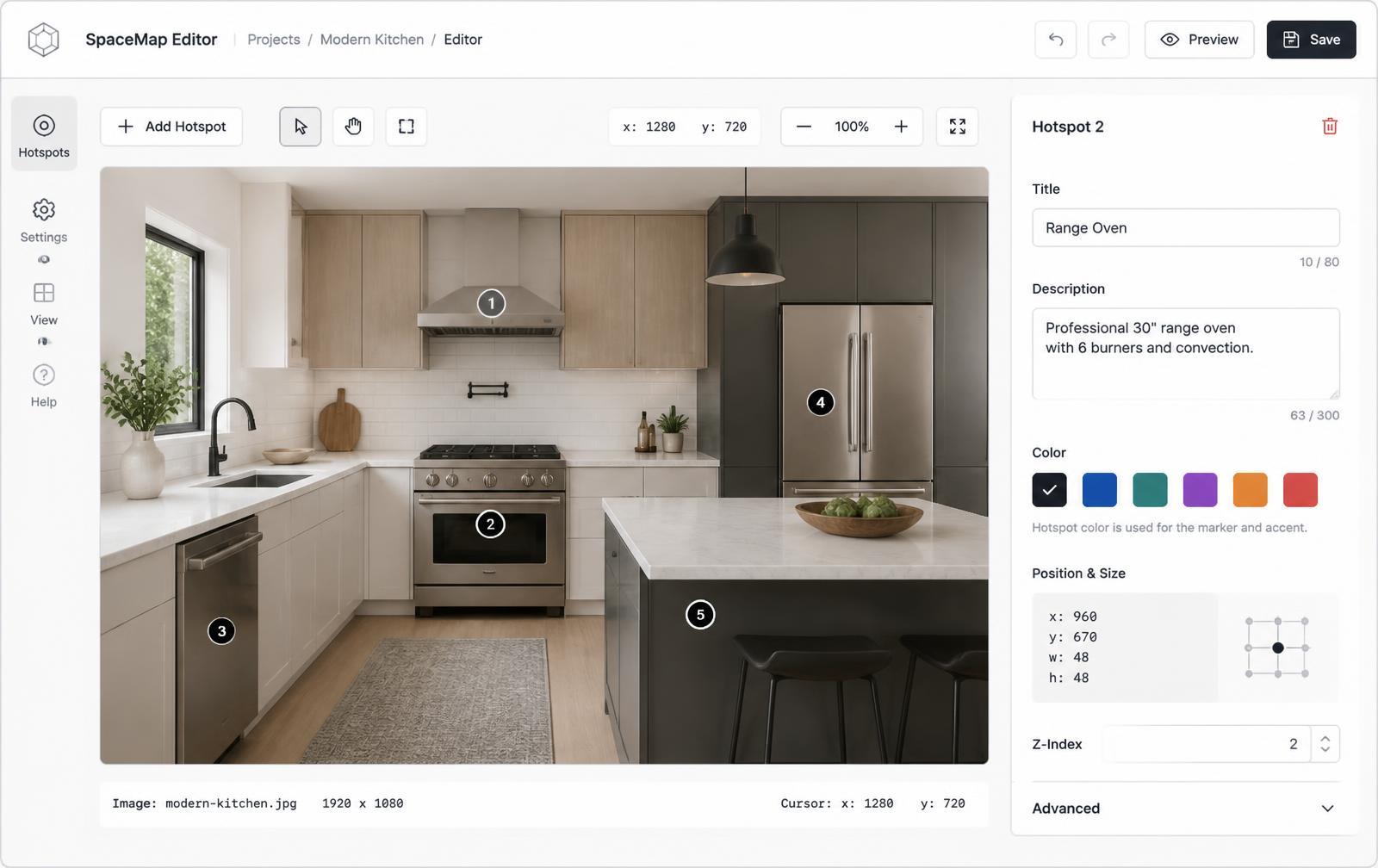
Drop your Canva export in here
Export the design as a PNG, upload it, and click to place hotspots. Publish with a free account to embed the clickable version anywhere.
This is a live demo — nothing here is published yet. Create a free account to publish your image and get a one-line embed code for Wix, Webflow, WordPress, Squarespace or plain HTML, with hosted images, images and video in the cards, CTA buttons and edits that go live instantly. Free includes 1 published image with the Interactive Image badge; Pro removes the badge and unlocks white-label embeds.
Keeps your Canva look
The design is unchanged — hotspots sit on top as a separate layer you can restyle any time.
Links survive the export
PNG and PDF exports strip Canva links. A hosted interactive image keeps every link and card.
Embeds anywhere
Canva Websites, Wix, WordPress, Webflow, Shopify, Notion — one iframe or one URL.
What you get
- Export PNG at 2× size, upload, click to place hotspots
- Popup cards with title, description, image, video, and CTA
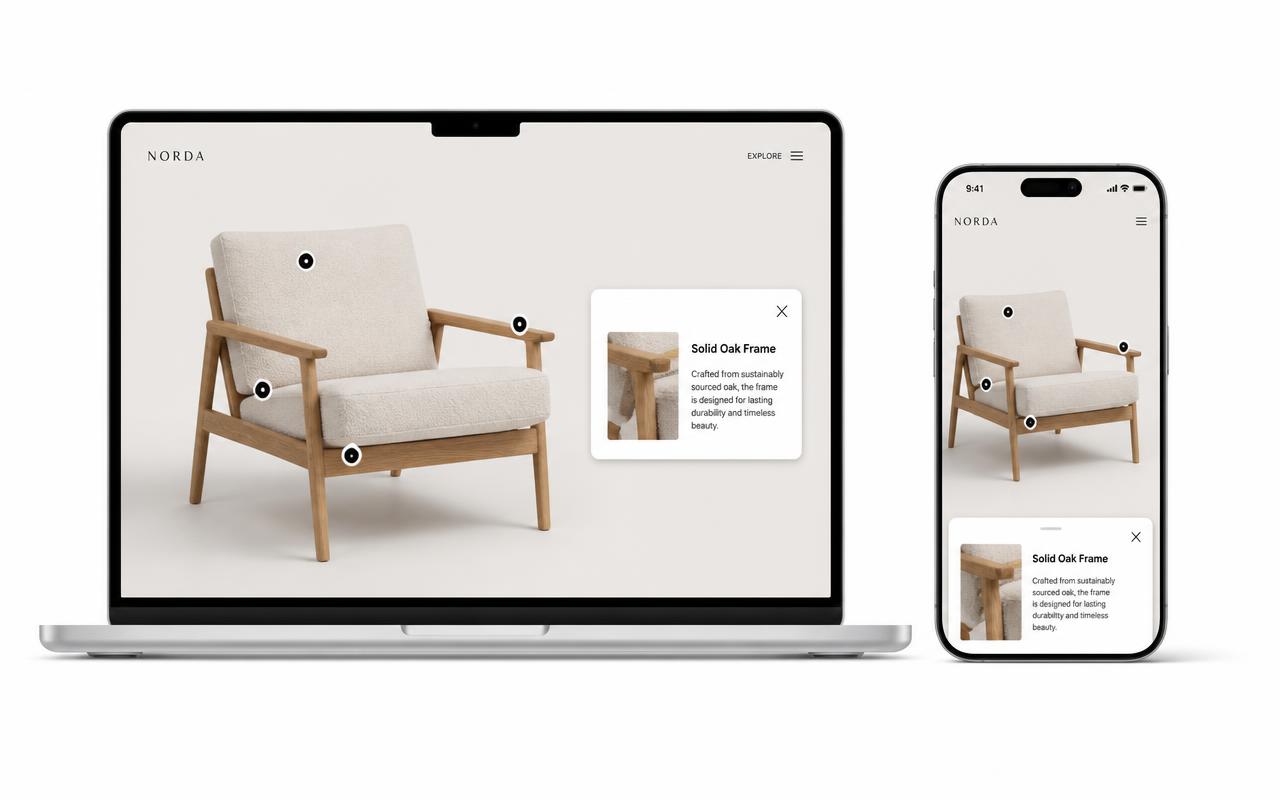
- Percentage-based markers stay aligned on phones
- Update the cards without re-exporting from Canva
- Free plan publishes one interactive image with a limited hotspot allowance
What Canva can and can't do with links
It's worth being precise, because this trips people up. Canva lets you attach a link to an element, and that link works in two places: Canva's own presentation player and a published Canva Website. Everywhere else — a downloaded PNG or JPG, a flattened PDF, an image pasted into a doc or an email — the link is gone, because a raster export has no concept of a clickable region.
There is also no hotspot element in Canva at all. No hover cards, no tap-to-open panel, no place to put a photo and a paragraph and a button for a single point on the artwork. That's the gap this fills: you keep designing in Canva and add the interactive layer on top of the finished image.
The export settings that matter
- PNG, not JPG. Canva designs are mostly flat colour and type; PNG keeps letterforms crisp while JPG smears them.
- Tick "Size × 2". A 1600px-wide export displayed at 800px looks sharp on retina screens. Uploading a 1× file is the single most common reason an embed looks softer than the Canva canvas did.
- Don't crop after export. Upload the whole frame. Hotspots are stored relative to the image you uploaded, so cropping later shifts every marker.
- Leave room around labels. A marker needs roughly 24–32px of visual breathing room. If your Canva layout is edge-to-edge dense, add a little padding before exporting.
Good Canva projects to make interactive
Infographics where the detail doesn't fit; product one-pagers where each feature deserves a photo; conference or venue maps; onboarding diagrams; menu boards; annotated screenshots for a help centre. If your design is a layout of a space, the interactive floor plan tool has plan-specific guidance, and interactive image examples show what teams typically build first.
What Canva's own interactivity can and can't do
Canva does support links: select an element, add a link, and it works inside a Canva presentation or a Canva Website. Where it stops:
- Exports lose the links. A PNG or JPG has no link layer at all, and PDF links break as soon as the file is embedded as an image.
- No hover cards. A Canva link jumps away; it can't show a title, photo, price, and description in place.
- No reuse outside Canva. Getting the design into Wix, WordPress, or Shopify means exporting an image — which is the step that drops the interactivity.
- Editing means re-exporting. Change one label and you re-export and re-upload everywhere the design lives.
Exporting the Canva design as a PNG and placing hotspots on top keeps the design work in Canva and moves the interaction to a layer you can edit without touching the artwork.
Setup at a glance
Canva · Canva Website (Embed element) — designs themselves stay static
- Time
- About 6 minutes
- Requirement
- A Canva Website (free or Pro) for the embed; Canva designs can't hold live iframes
- Element
- Apps → Embed
- Export from Canva
- PNG at 2× size
- Works in a PDF export
- No — use the hosted embed
Step by step
How to add an interactive image to Canva
Five steps, no developer. Everything below happens once — after that you edit hotspots in Interactive Image and your Canva page updates on its own.
- 01
Export your Canva design as an image
Finish the layout in Canva, then Share → Download → PNG (tick "Size × 2" for a crisp result). That flat PNG becomes the base image for your hotspots.
- 02
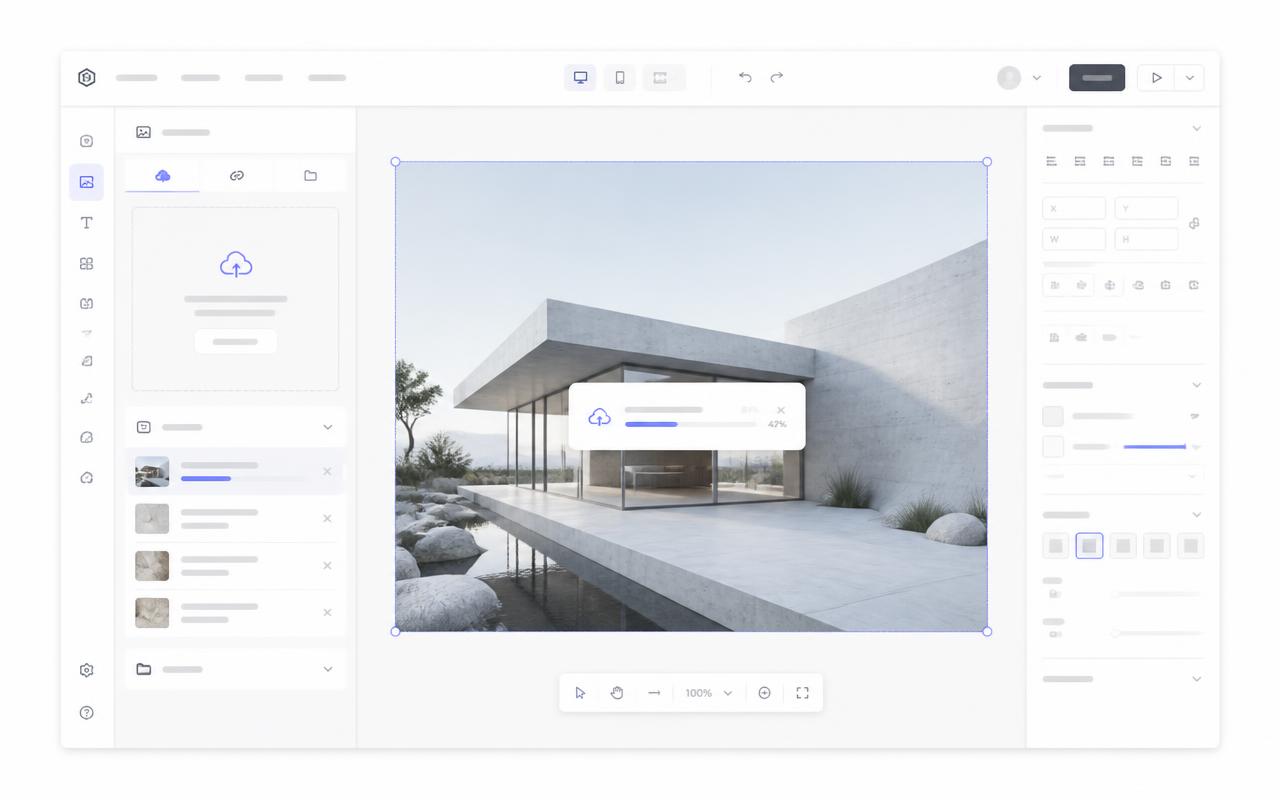
Upload it to Interactive Image
Create a new interactive image and upload the exported PNG. Nothing is cropped, so the hotspot coordinates match your Canva layout exactly.
- 03
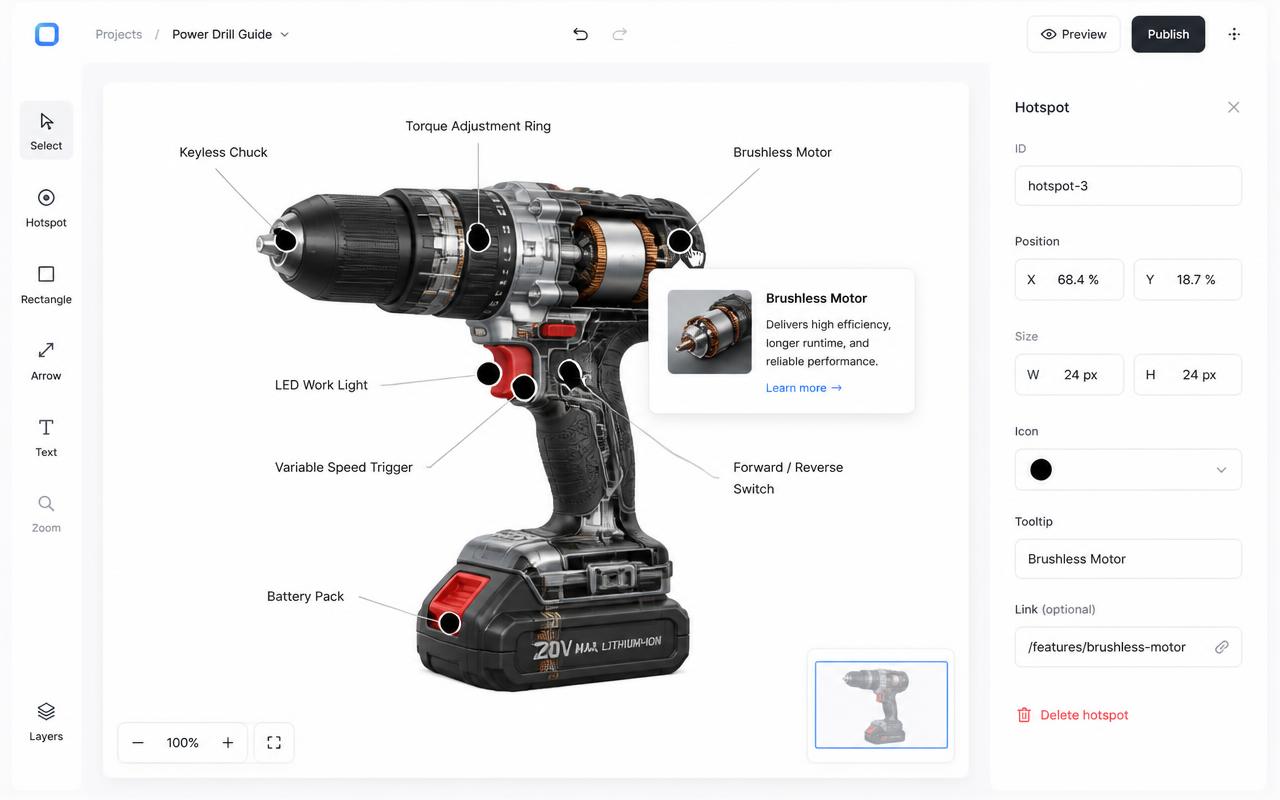
Place hotspots on the Canva artwork
Click each label, icon, or product in your design to drop a dot, then write the card title, description, media, and CTA link.
- 04
Copy the embed snippet
Copy the responsive iframe from the Embed panel. Canva Websites accept it in an Embed element.
<div style="position:relative;width:100%;padding-top:56.25%">
  <iframe src="https://interactiveimage.com/embed/YOUR-ID"
    style="position:absolute;inset:0;width:100%;height:100%;border:0"
    scrolling="no" loading="lazy"></iframe>
</div>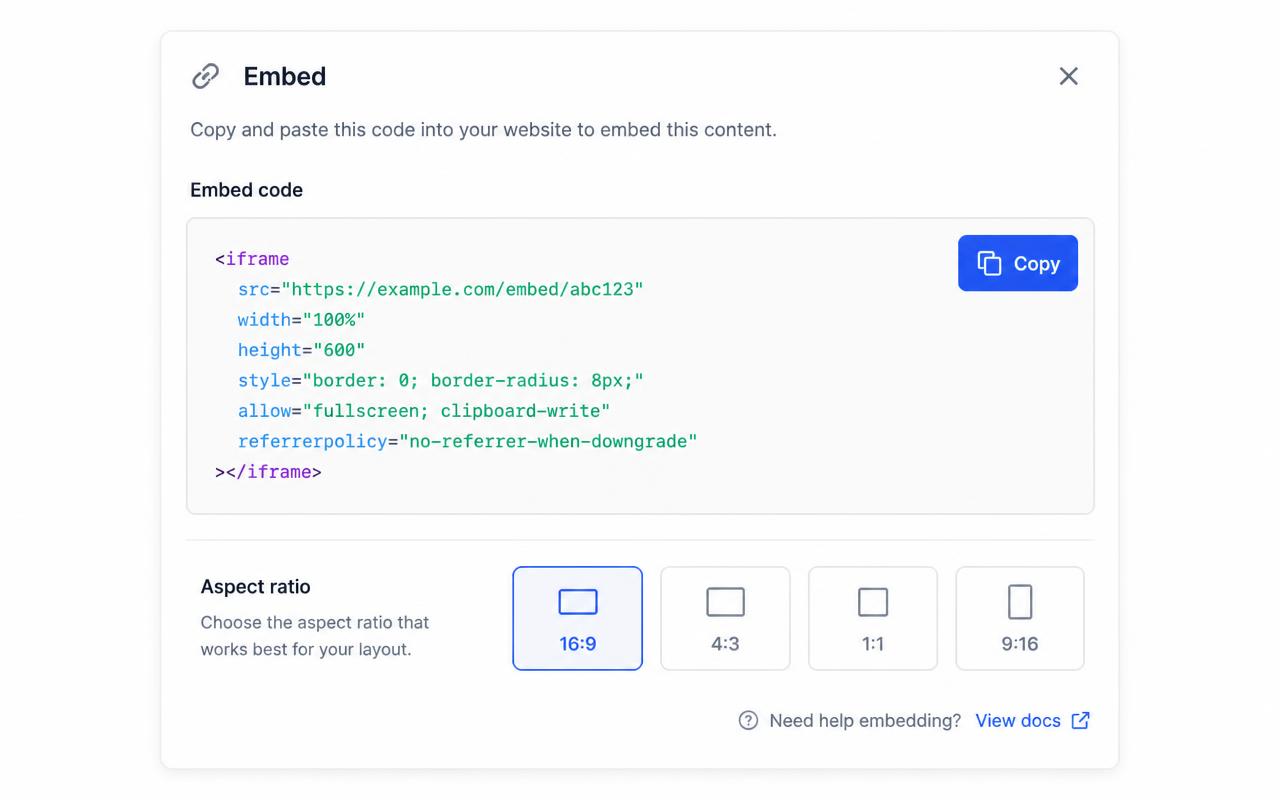
- 05
Add it to your Canva Website and publish
In the Canva editor choose Apps → Embed, paste the link or snippet, place the element on the page, then publish the site. For a design that isn't a website, publish the interactive image on its own URL and link to it instead.
Troubleshooting
Fixes for the Canva issues people hit
Can I make a Canva design itself interactive?
Not with live hotspots. Canva designs support links on elements when viewed as a Canva presentation or website, but a PDF or PNG export loses everything except flat pixels. Export the design as an image, add hotspots in Interactive Image, and embed that instead.
The embed is blurry compared to my Canva design
Export at 2× size from Canva before uploading. The embed renders your uploaded file, so upload resolution is what determines sharpness.
Where do I choose the map type and edit a dot?
In the account dashboard, New Map offers Image map or Mapbox map. This choice is fixed after creation. For image maps, choose Upload Background Image and Add new dot; geographic maps offer address search and Import locations. Select a dot and use Content for its type, text, media, and links, Appearance for that dot, and Map settings for shared defaults. Enable embedding and copy the current snippet before publishing it on your website.
The embed looks cropped or has scrollbars
The iframe height doesn't match the image aspect ratio. Copy a fresh snippet from the Embed panel — it bakes the exact ratio into a padding-based wrapper — or set the iframe height to width ÷ aspect ratio.
Hotspots look slightly offset from the artwork
That happens when the container letterboxes the image. Interactive Image measures the rendered image box, so hotspots stay glued to the artwork — just make sure you didn't force a fixed height that differs from the image ratio.
Changes aren't showing on the live site
Save in the editor, then hard-refresh the published page. The embed always renders the latest saved version — you never need to re-paste the snippet unless the aspect ratio changed.
Continue exploring
Need it built for you?
Big maps, bulk hotspots, custom designs or integrations, built by our team at Upcode.
Turn any image into a guided experience.
Free forever plan. Paste one iframe into your site and ship.
Create your interactive image