

For Elementor
Image hotspots in Elementor, from one HTML widget.
Build the interactive image once, paste one snippet into Elementor's HTML widget, and reuse the same asset on every page and site you own.
Free forever plan · No credit card · Works in Wix, Webflow, WordPress, Shopify, Squarespace

Works on Elementor Free
The HTML widget is core Elementor. No Pro licence and no add-on required.
Reusable asset
The same embed drops into any page, template, popup, or another site entirely.
Responsive by default
Percentage hotspots and a ratio-based wrapper keep everything aligned at every breakpoint.
What you get
- Paste into the HTML widget — nothing else to configure
- Cards hold a title, description, image, video, and CTA link
- Edits propagate to every page using the embed
- Lazy-loaded iframe, so page speed is unaffected
- Works inside popups, tabs, accordions, and loop templates
Elementor's hotspot widget versus a hosted embed
| Capability | Elementor Pro hotspots | Interactive Image embed |
|---|---|---|
| Where hotspots live | Inside that one page's layout | A hosted asset reusable anywhere |
| Card content | Short tooltip text | Title, description, image, video, CTA |
| Licence needed | Elementor Pro | Works on Elementor Free |
| Reuse on a second site | Re-author, or copy the template | Paste the same snippet |
| Who can edit it | Anyone with page-builder access | Anyone with editor access, no WordPress login |
| Migrating off Elementor | Hotspots don't come with you | Snippet works on the new platform |
Fair trade-off: Elementor's widget inherits your global theme styles automatically, while the embed is styled in the Interactive Image editor. If matching brand colours exactly matters, set the marker colour and card text size there once and every embed follows.
Caching, minification, and the usual WordPress suspects
Nine times out of ten an embed that works in the Elementor editor but not on the live page is a performance plugin. In order of likelihood:
- HTML minification mangling the inline style attributes in the wrapper div. Exclude the page.
- Iframe lazy-load rules that replace the
srcwith a placeholder attribute the browser never restores. Disable for this page. - Page cache serving the version from before you added the widget. Purge after publishing.
- A security plugin or CSP header blocking third-party frames. Allow
interactiveimage.cominframe-src.
If you're not on Elementor
The same snippet works everywhere. There are step-by-step guides for WordPress core blocks, Wix, Webflow, Squarespace, and Shopify. For the markup-level alternatives, see the CSS image map approach.
Setup at a glance
Elementor · HTML widget inside any Elementor section
- Time
- About 5 minutes
- Requirement
- Elementor Free or Pro on self-hosted WordPress
- Widget
- HTML
- Elementor plan
- Free or Pro
- Shortcode needed
- None
Step by step
How to add an interactive image to Elementor
Five steps, no developer. Everything below happens once — after that you edit hotspots in Interactive Image and your Elementor page updates on its own.
- 01
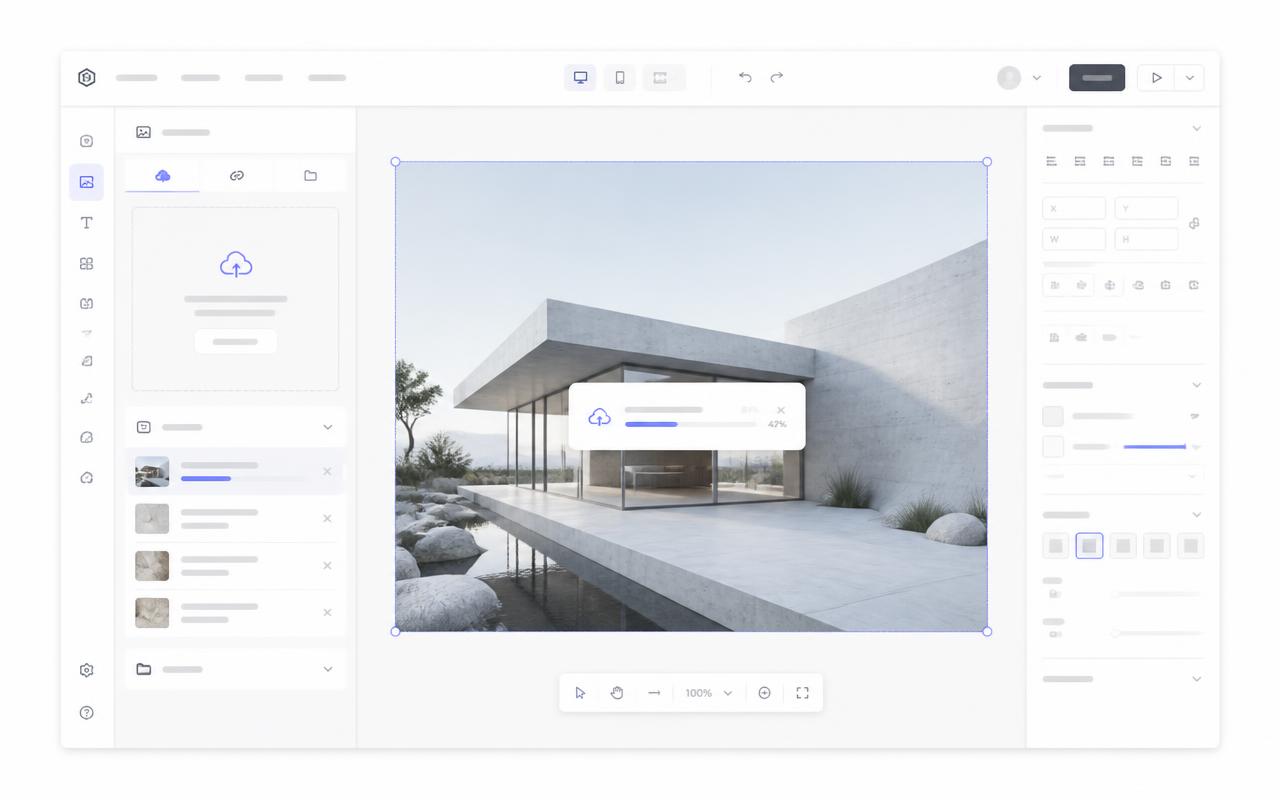
Upload your image
Create the interactive image and upload the visual you want to annotate — a product render, floor plan, or diagram.
- 02
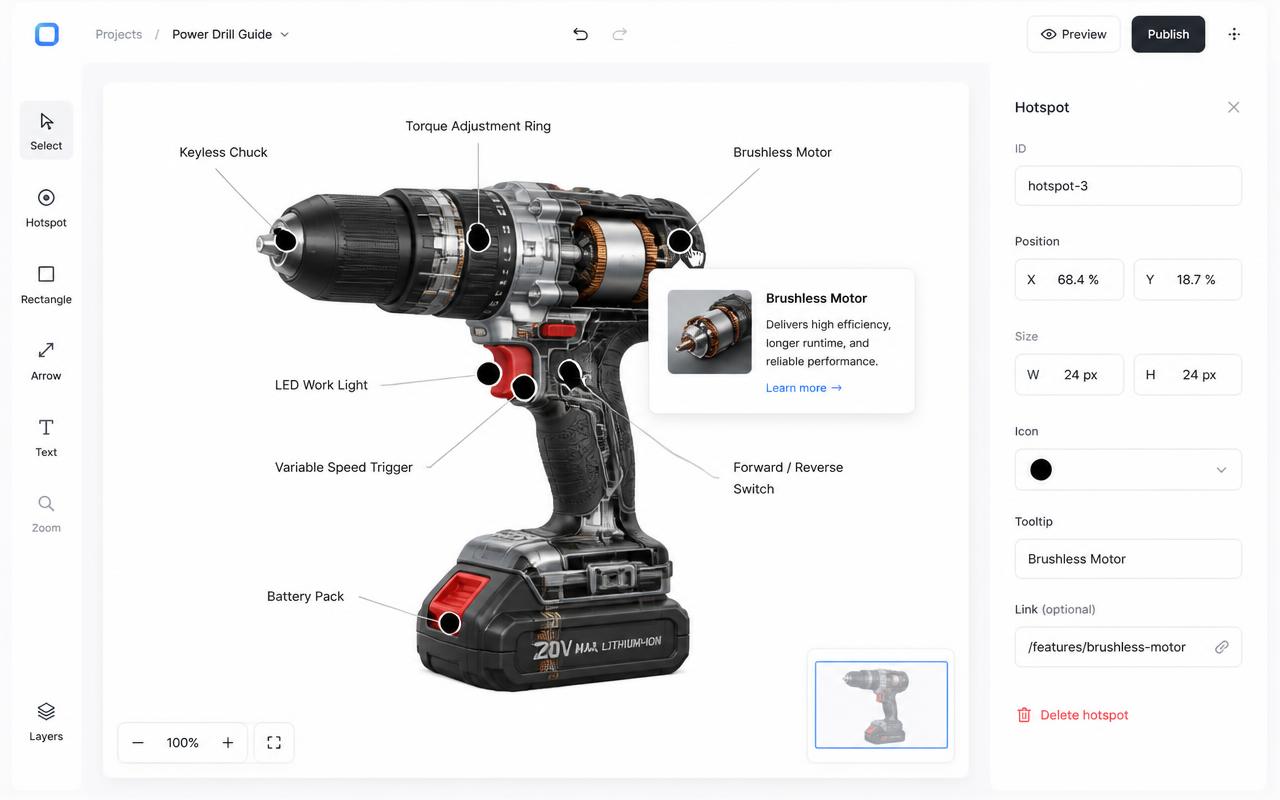
Add hotspots and cards
Drop a dot on each detail and fill in titles, descriptions, images, and CTA links.
- 03
Copy the responsive iframe
Copy the snippet from the Embed panel. No plugin or shortcode is needed — it's plain HTML.
<div style="position:relative;width:100%;padding-top:56.25%">
  <iframe src="https://interactiveimage.com/embed/YOUR-ID"
    style="position:absolute;inset:0;width:100%;height:100%;border:0"
    scrolling="no" loading="lazy"></iframe>
</div>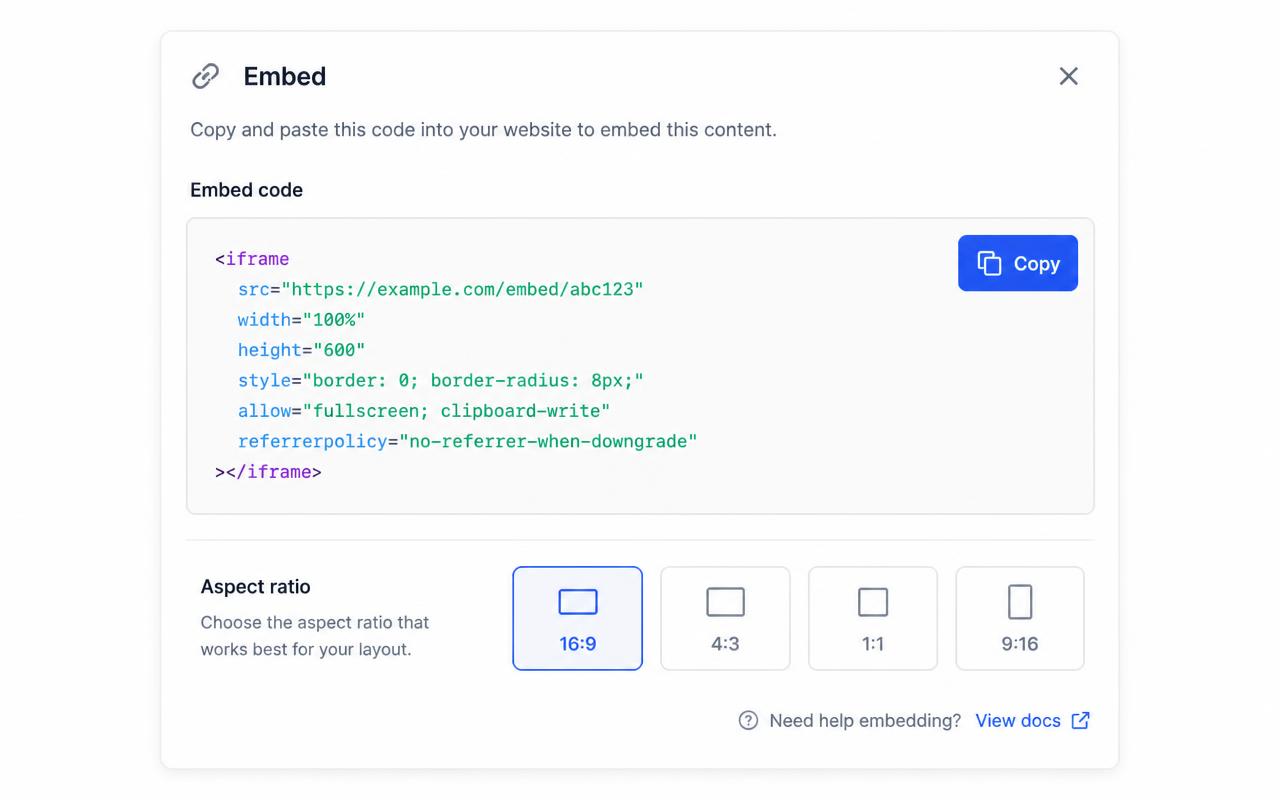
- 04
Drag in an HTML widget
In the Elementor editor, search the widget panel for "HTML", drag it into your column, and paste the snippet into the HTML Code field.
- 05
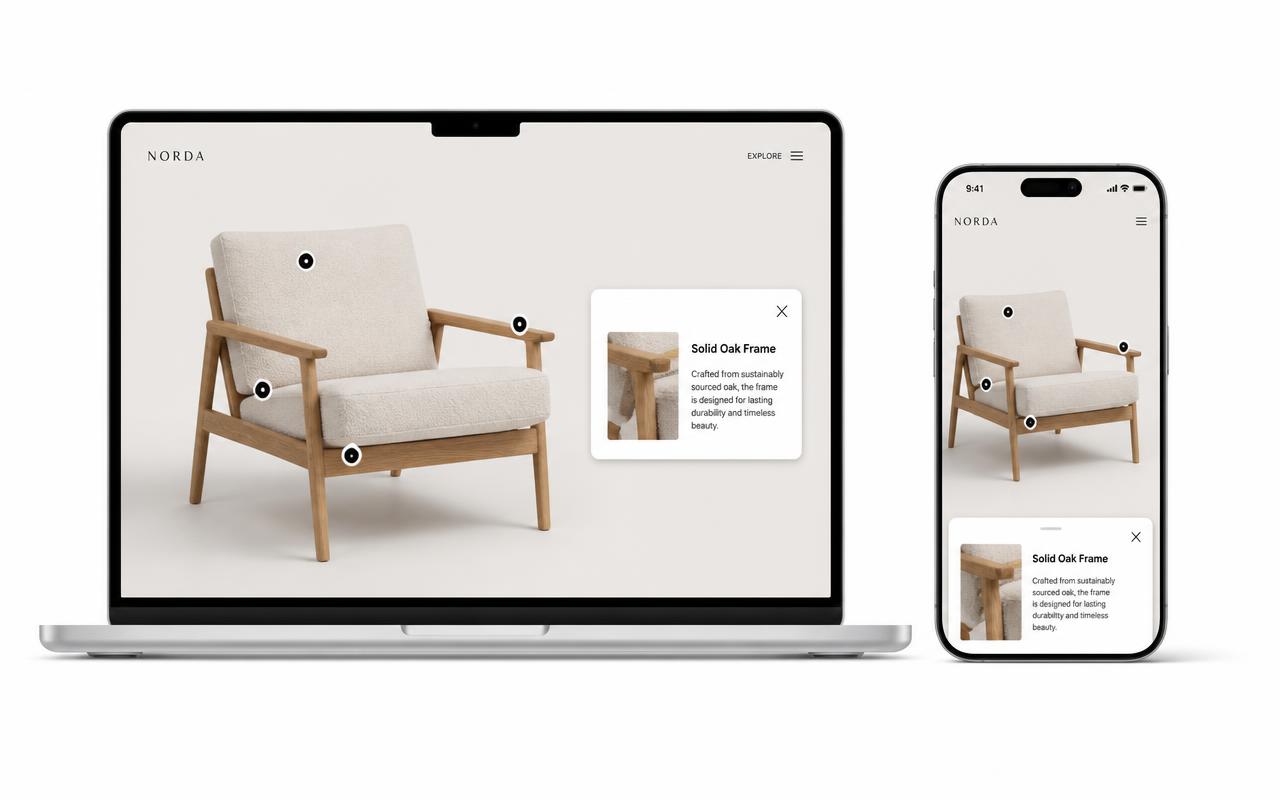
Set the container width and publish
Give the parent column 100% width and no fixed height, then Update. Check the tablet and mobile views with Elementor's responsive toggles.
Troubleshooting
Fixes for the Elementor issues people hit
Elementor's Image Hotspot widget vs this embed
Elementor Pro's hotspot widget works, but the hotspots live inside that one page — you can't reuse them elsewhere, and the tooltips are limited. An Interactive Image embed is reusable across pages and sites and supports media and CTAs in the card.
The embed is cut off inside a section with a fixed height
Remove the section's minimum height or set it to auto. The padding-based wrapper in the snippet sizes the iframe from its width.
It works in the editor but not on the live page
A caching or optimization plugin is stripping or deferring the iframe. Exclude the page from HTML minification and clear the cache.
Where do I choose the map type and edit a dot?
In the account dashboard, New Map offers Image map or Mapbox map. This choice is fixed after creation. For image maps, choose Upload Background Image and Add new dot; geographic maps offer address search and Import locations. Select a dot and use Content for its type, text, media, and links, Appearance for that dot, and Map settings for shared defaults. Enable embedding and copy the current snippet before publishing it on your website.
The embed looks cropped or has scrollbars
The iframe height doesn't match the image aspect ratio. Copy a fresh snippet from the Embed panel — it bakes the exact ratio into a padding-based wrapper — or set the iframe height to width ÷ aspect ratio.
Hotspots look slightly offset from the artwork
That happens when the container letterboxes the image. Interactive Image measures the rendered image box, so hotspots stay glued to the artwork — just make sure you didn't force a fixed height that differs from the image ratio.
Changes aren't showing on the live site
Save in the editor, then hard-refresh the published page. The embed always renders the latest saved version — you never need to re-paste the snippet unless the aspect ratio changed.
Need it built for you?
Big maps, bulk hotspots, custom designs or integrations, built by our team at Upcode.
Turn any image into a guided experience.
Free forever plan. Paste one iframe into your site and ship.
Create your interactive image