

For Framer
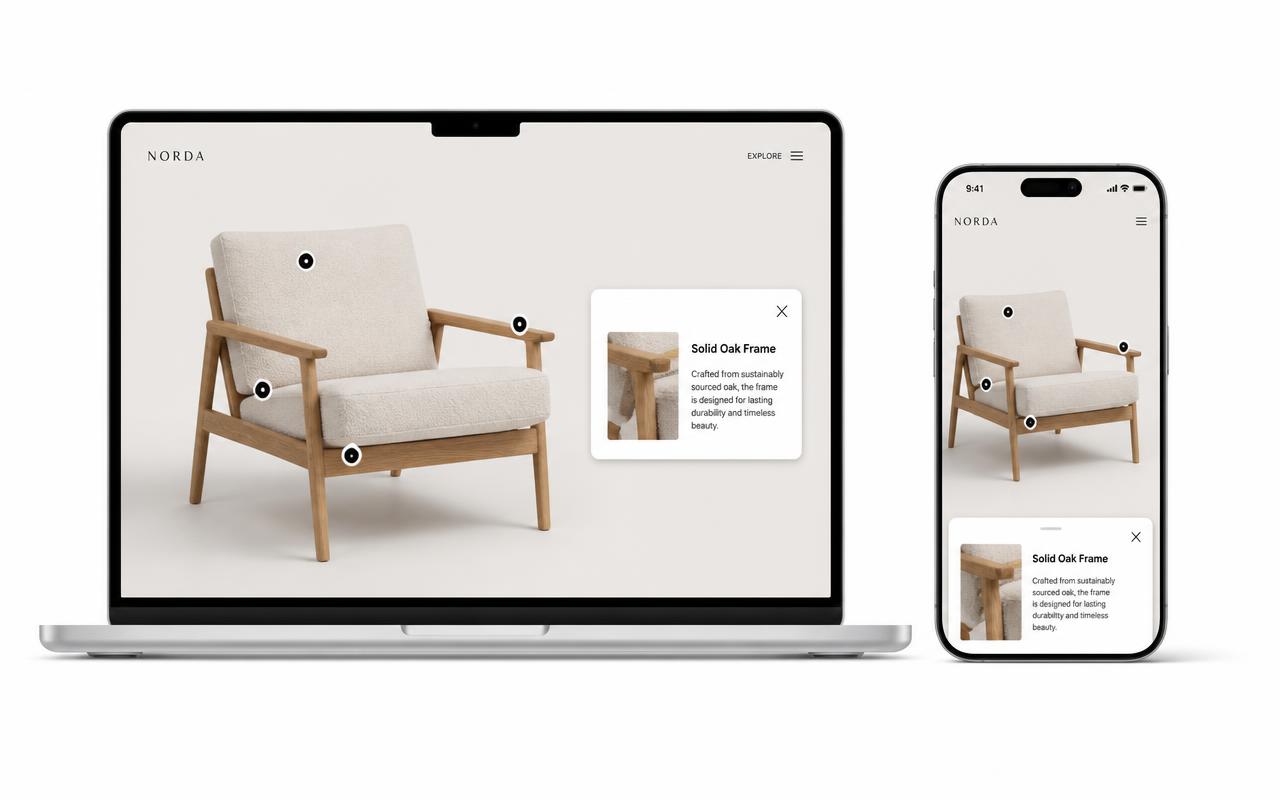
Hotspot images inside your Framer site.
Drag in Framer's Embed component, paste one iframe, and your photo or diagram becomes clickable — without leaving the visual canvas.
Free forever plan · No credit card · Works in Wix, Webflow, WordPress, Shopify, Squarespace
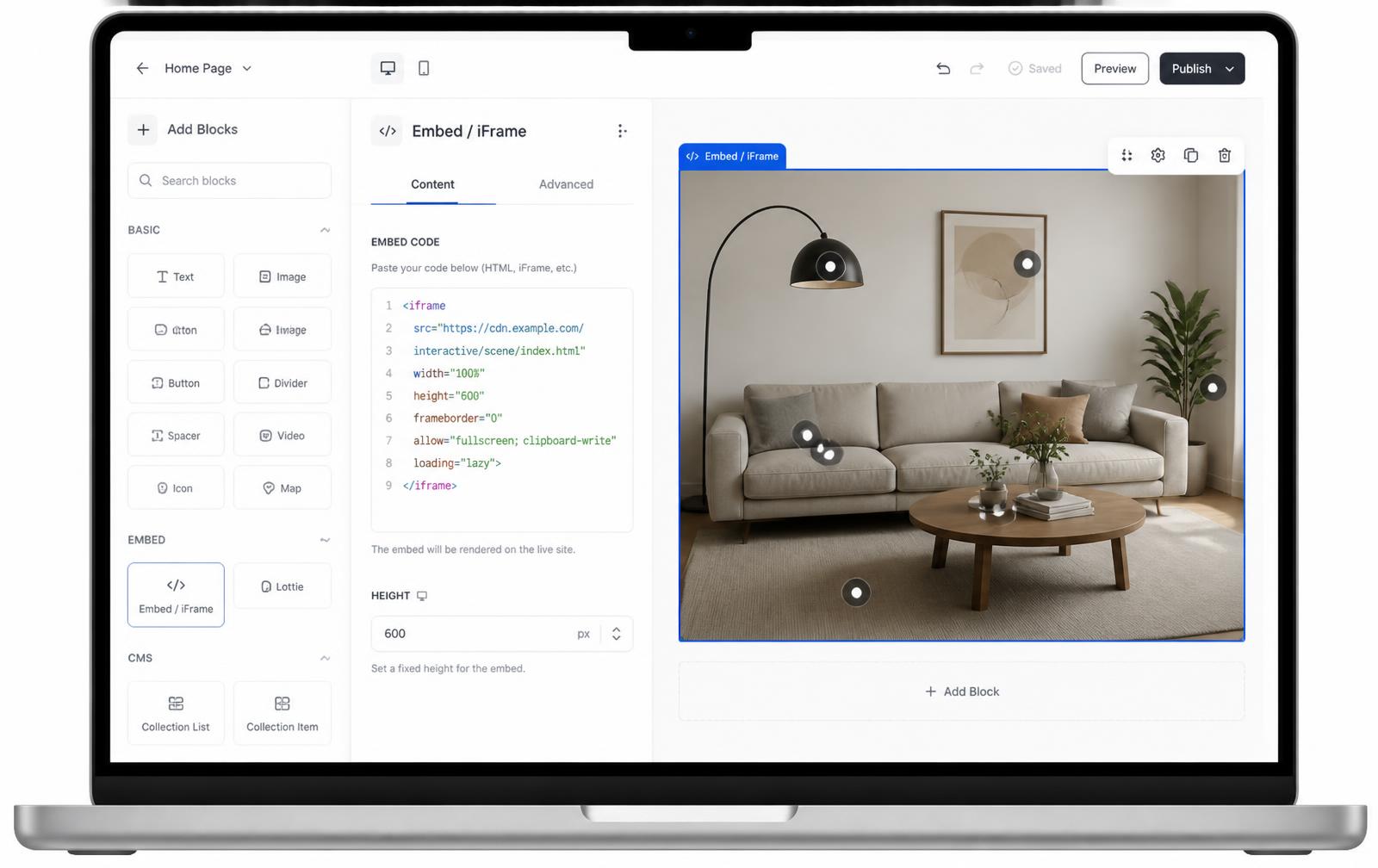
Native Embed component
Framer's canvas already has an Embed layer built for exactly this — no code override, no plugin marketplace.
Design-first workflow
Position the Embed layer like any other Framer element, then let motion effects wrap around it.
Breakpoint-aware sizing
Set the Embed to fill and Framer's responsive engine and the image's own percentage hotspots stay aligned together.
What you get
- No code override required — use the built-in Embed layer
- Works inside Framer's component and page structure
- Popups render inside the iframe, independent of Framer's motion layer
- Percentage hotspots track Framer's responsive width changes
- Great for portfolio case studies and product marketing pages
Where this fits in a Framer site
Framer sites tend to lean heavily on motion and layout polish, and a static screenshot in a case study or product page can feel flat next to that. An interactive image gives visitors something to do without adding custom React overrides — you keep the whole page inside Framer's visual editor. It works well for agency case studies annotating a redesign, SaaS product tours pointing at UI elements, and portfolio pieces breaking down a layout decision. Compare it with other embed approaches on the comparison page.
Framer's Embed component vs a code override
Framer gives you two ways to get an iframe onto the canvas, and the Embed component is the right one for this:
- Embed component (recommended): A built-in layer type made for pasting HTML/iframe snippets. Drag it in from the Insert panel, paste the code, resize like any other layer. No code editor, no override file, works on the free plan.
- Code override: A React file you attach to a layer to change its behavior. Useful if you need to swap the embed URL per CMS item or per breakpoint dynamically, but it's unnecessary overhead for a single static interactive image.
Unless you have a CMS-driven use case, skip the override and use the Embed component directly.
Sizing the Embed component so hotspots stay accurate
Framer's Embed layer takes whatever width and height you give it, and the iframe fills that box exactly:
- Set the layer's width to Fill so it stretches to its parent's width on every breakpoint.
- Leave height on Fit or paste the snippet that already wraps the iframe in an aspect-ratio box — that way height is derived from width automatically instead of a fixed pixel value that breaks on narrower screens.
- If you do need a fixed height (for a hero band, for example), calculate it as width ÷ aspect ratio for each breakpoint you check.
<div style="position:relative;width:100%;aspect-ratio:16/9">
  <iframe src="https://interactiveimage.com/embed/YOUR-ID"
    style="position:absolute;inset:0;width:100%;height:100%;border:0"
    scrolling="no" loading="lazy" title="Interactive image"></iframe>
</div>
What Framer's native tools can't do on their own
Framer's Link and Stack components let you make a whole image clickable, or overlay one interactive element per layer, but building several independent click targets with their own popup content on one photo means stacking many absolutely-positioned layers by hand and re-aligning them at every breakpoint. Interactive Image handles that positioning with percentages internally, so the Embed component just holds one iframe instead of a pile of layered elements. For background on the approach, see what is an interactive image.
Setup at a glance
Framer · Embed component (HTML mode)
- Time
- About 4 minutes
- Requirement
- Any Framer site plan
- Component
- Embed → HTML
- Breakpoints
- All
- Code required
- Paste only
Step by step
How to add an interactive image to Framer
Five steps, no developer. Everything below happens once — after that you edit hotspots in Interactive Image and your Framer page updates on its own.
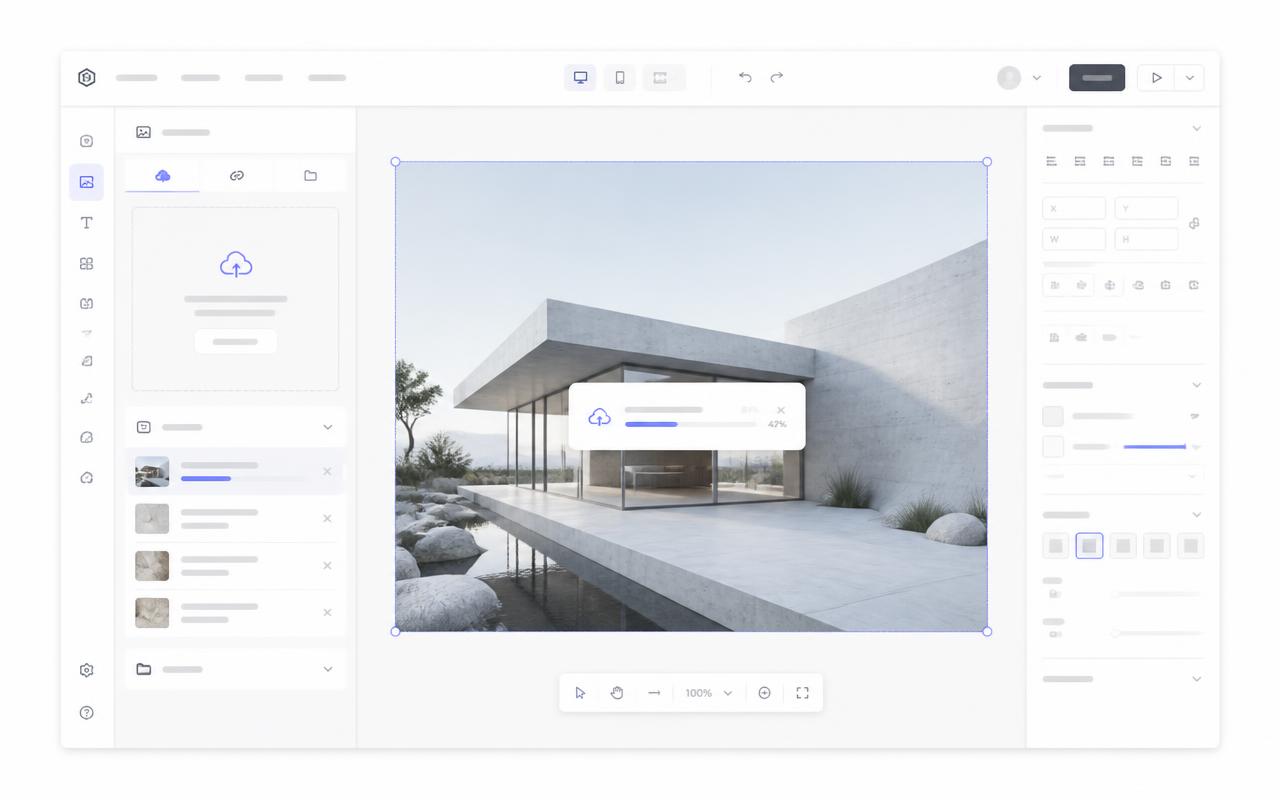
- 01
Upload your image
Create the interactive image with your artwork.
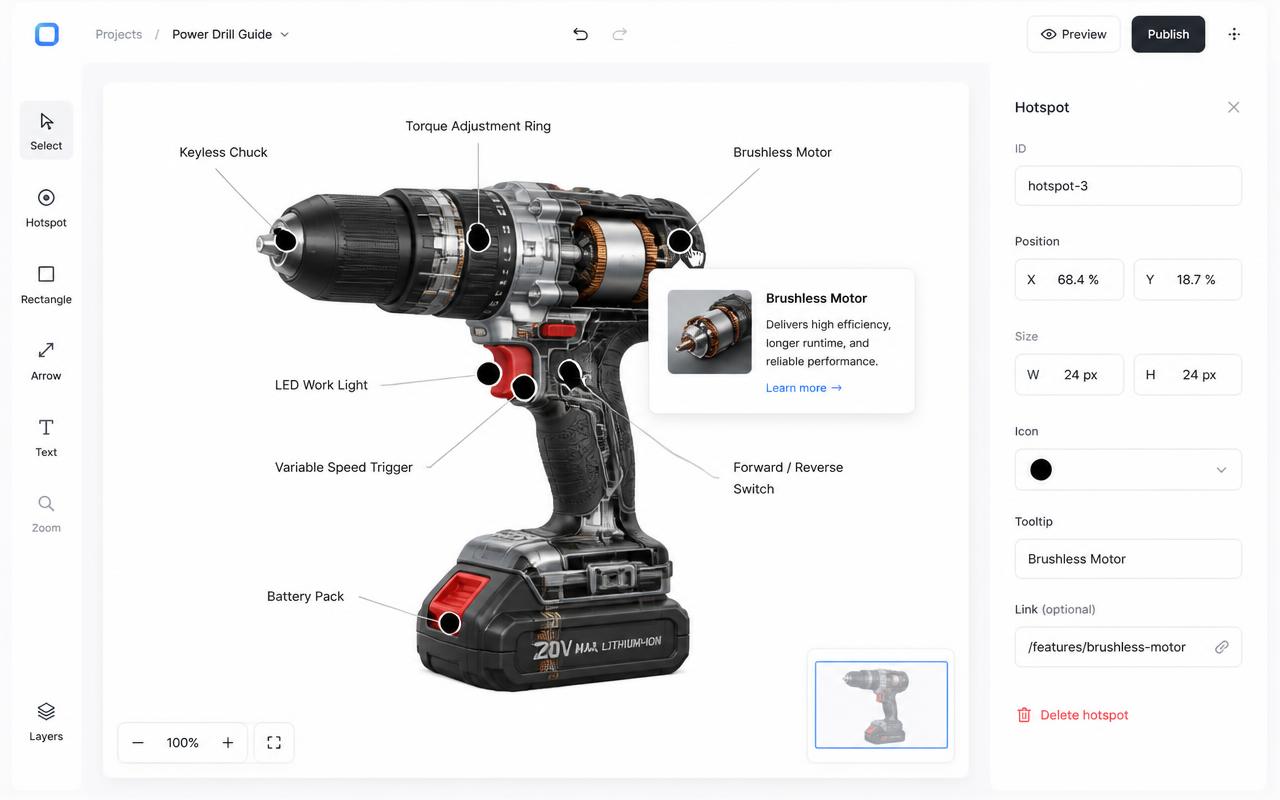
- 02
Add hotspots
Place dots, set styling, and write the popup cards.
- 03
Copy the snippet
Copy the responsive iframe from the Embed panel.
<div style="position:relative;width:100%;padding-top:56.25%">
  <iframe src="https://interactiveimage.com/embed/YOUR-ID"
    style="position:absolute;inset:0;width:100%;height:100%;border:0"
    scrolling="no" loading="lazy"></iframe>
</div>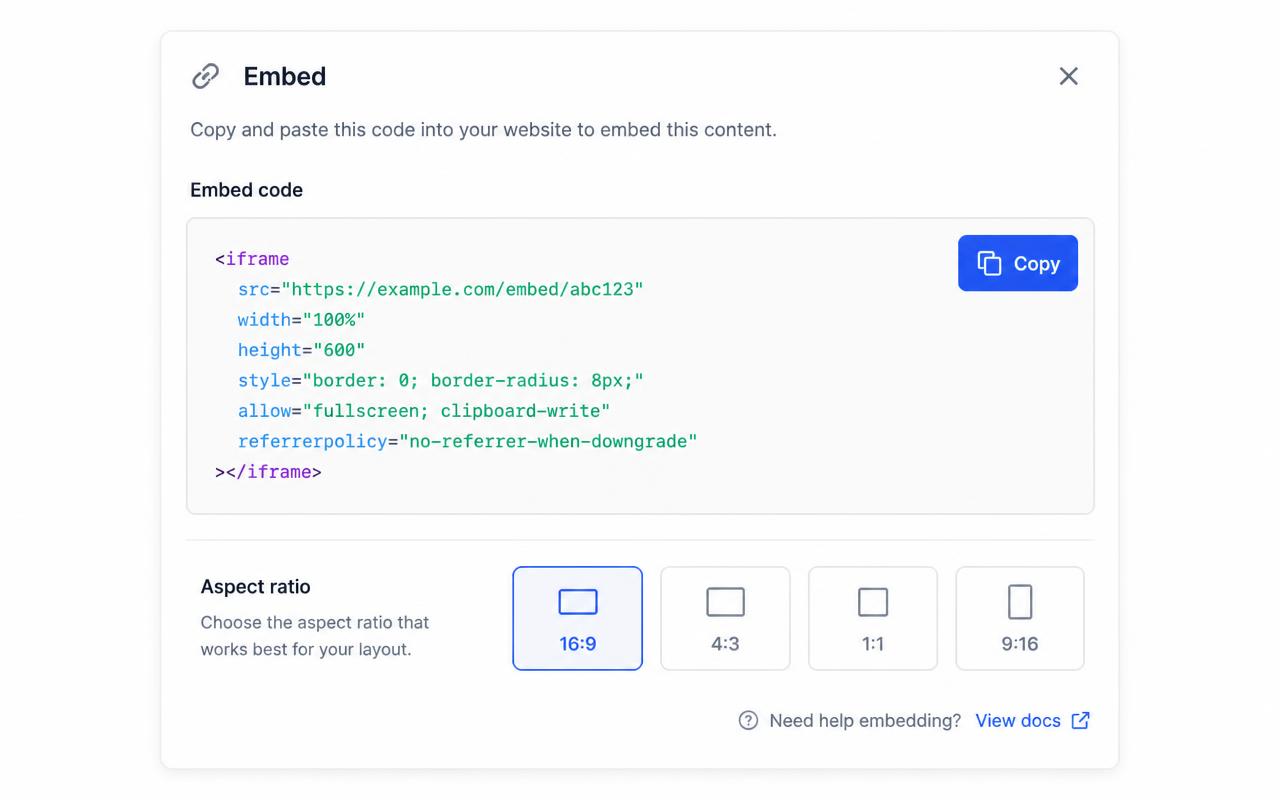
- 04
Insert Framer's Embed
Add the Embed component from the insert menu, switch it to HTML, and paste the snippet. Set the layer to Fill width and Fit height.
- 05
Publish
Preview on each breakpoint and publish. The embed behaves like any other Framer layer inside stacks and grids.
Troubleshooting
Fixes for the Framer issues people hit
The embed has a fixed height that ignores my layout
Set the Embed layer's width to Fill and let the padding-based wrapper in the snippet control the height instead of a hard pixel value.
Where do I choose the map type and edit a dot?
In the account dashboard, New Map offers Image map or Mapbox map. This choice is fixed after creation. For image maps, choose Upload Background Image and Add new dot; geographic maps offer address search and Import locations. Select a dot and use Content for its type, text, media, and links, Appearance for that dot, and Map settings for shared defaults. Enable embedding and copy the current snippet before publishing it on your website.
The embed looks cropped or has scrollbars
The iframe height doesn't match the image aspect ratio. Copy a fresh snippet from the Embed panel — it bakes the exact ratio into a padding-based wrapper — or set the iframe height to width ÷ aspect ratio.
Hotspots look slightly offset from the artwork
That happens when the container letterboxes the image. Interactive Image measures the rendered image box, so hotspots stay glued to the artwork — just make sure you didn't force a fixed height that differs from the image ratio.
Changes aren't showing on the live site
Save in the editor, then hard-refresh the published page. The embed always renders the latest saved version — you never need to re-paste the snippet unless the aspect ratio changed.
Need it built for you?
Big maps, bulk hotspots, custom designs or integrations, built by our team at Upcode.
Turn any image into a guided experience.
Free forever plan. Paste one iframe into your site and ship.
Create your interactive image