

What is an interactive image?
An interactive image is a photo, diagram, floor plan or map with clickable points on top of it. Clicking a point opens a small card holding a title, description, optional photo or video, and a link, so one picture can carry the information that would otherwise need a full page.
Guide
What is an interactive image?
An interactive image is a normal photo with clickable hotspots on it. Each hotspot opens a card with its own text, photo, video, and link — so one image can explain a whole product, room, or venue.
Free forever plan · No credit card · Works in Wix, Webflow, WordPress, Shopify, Squarespace
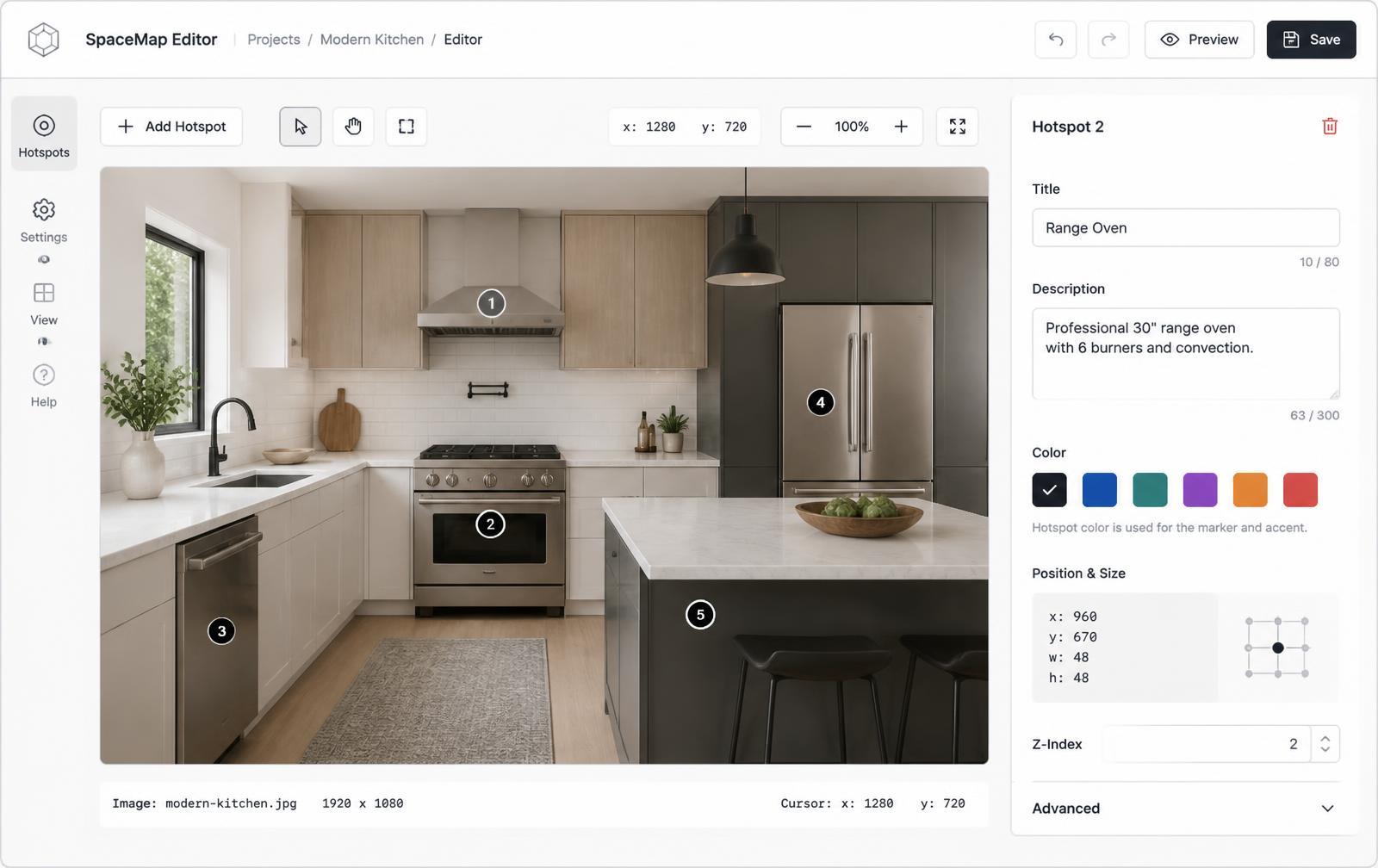
The image
Any photo, product shot, render, diagram, floor plan, or illustration you already have.
The hotspots
Markers pinned to specific points of that image, positioned as percentages so they scale.
The cards
What opens on hover or tap: a title, description, photo or video, and an optional link.
What you get
- Works with any image you already have
- Hotspots stay accurate at every screen size
- Cards can hold text, photos, video, and links
- Keyboard-focusable markers, not hover-only
- Embeds into Wix, WordPress, Webflow, Squarespace, and Shopify
- No HTML image map coordinates to maintain
How an interactive image works
The image itself is unchanged — nothing is baked into the pixels. Each hotspot is stored separately as an x and y percentage of the image plus the content attached to it. When the page renders, the markers are positioned over the image at those percentages, which is why they stay accurate whether the image is 400px wide on a phone or 1600px wide on a desktop. Hovering or tapping a marker opens its card in place, so the visitor never leaves the page.
Interactive image vs. image map vs. hotspot image vs. infographic vs. prototype
These terms overlap in casual use but describe genuinely different tools. The table below is the fastest way to tell them apart.
| Term | What it is | Popup content | Responsive? |
|---|---|---|---|
| HTML image map | <map>/<area> shapes, pixel coordinates | Link only | No, by default |
| Hotspot image | An image with markers pinned to points | Depends on the tool | Depends on the tool |
| Interactive image | A published hotspot image with rich popups | Text, media, CTA | Yes, with percentage positions |
| Interactive infographic | A custom-built page with charts and animation | Anything, hand-coded | Depends on the build |
| Clickable prototype | Linked screens simulating an app flow | Navigates to another screen | Usually fixed-frame |
The original way to add clickable regions to an image was the HTML <map> element with <area> shapes. It only supports links, not cards or media, and its coordinates are absolute pixels — so the clickable regions drift out of place as soon as the image is responsive. Read the full comparison.
Common uses
- Product diagrams and spec callouts on an assembly or cutaway render
- Clickable floor plans for real estate, offices, and events
- Venue and seating maps with per-section detail
- Shoppable images that link each item in a lookbook to its product page
- Onboarding walkthroughs and annotated UI screenshots
How to make one
- Upload your image. Keep its original resolution and aspect ratio — never crop after you place hotspots.
- Place a hotspot on each point you want to explain. Positions are saved as percentages, not pixels.
- Add the title, text, photo or video, and link for each one.
- Copy the embed snippet into your site — see the step-by-step guide, how to add the hotspots themselves, or try the live editor.
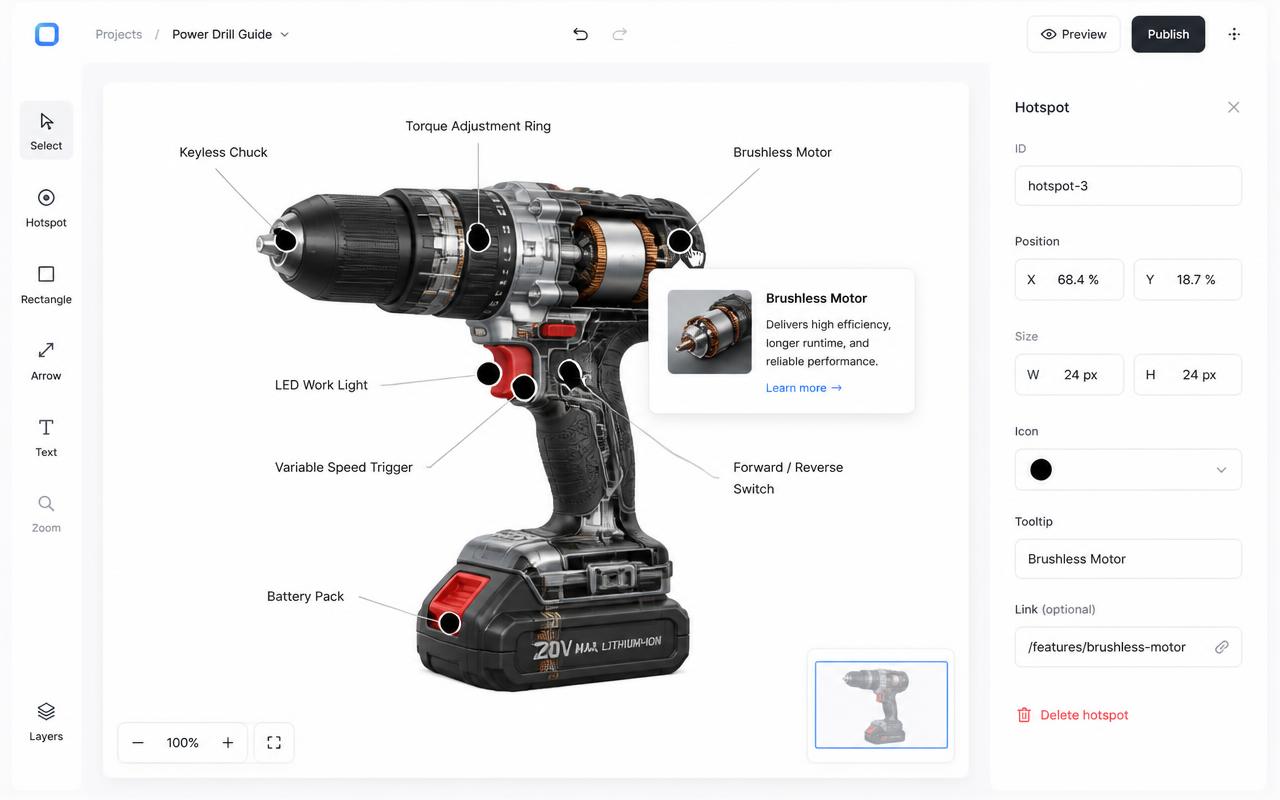
Where it can be published
Anywhere that accepts an iframe embed: Wix, WordPress, Webflow, Shopify, and Squarespace all work, plus custom-built sites and internal tools. The same source image and hotspots update every place the iframe is pasted.
Free vs. Pro
The free plan publishes one interactive image with a limited hotspot allowance and a small badge on the embed. Paid plans start at $9/mo, remove the badge, and raise the limit to 3, 15 or unlimited images — everything else about how hotspots work is identical on both plans.
Need it built for you?
Big maps, bulk hotspots, custom designs or integrations, built by our team at Upcode.
Turn any image into a guided experience.
Free forever plan. Paste one iframe into your site and ship.
Create your interactive image