

How do I add a link to an image?
For one destination, wrap the image in an anchor tag. For several, put a clickable point on each region and give each its own URL — that is what an image map or interactive image does. Interactive Image's free browser tool generates the markup or a ready-to-paste embed.
Add a link to any part of an image — not just the whole thing.
One image, as many destinations as you need. Click where each link belongs, write the card, and embed the result on any site. Free to try, nothing to install.
Add your links right here
Upload an image or use the sample, click to place a link, and hover to see how it behaves. Publish it with a free account to get your embed code.

This is a live demo — nothing here is published yet. Create a free account to publish your image and get a one-line embed code for Wix, Webflow, WordPress, Squarespace or plain HTML, with hosted images, images and video in the cards, CTA buttons and edits that go live instantly. Free includes 1 published image with the Interactive Image badge; Pro removes the badge and unlocks white-label embeds.
Free forever plan · No credit card · Works in Wix, Webflow, WordPress, Shopify, Squarespace
Many links, one image
Each region gets its own URL, title and description — so a plan, diagram, or catalogue page works as a single asset.
Correct on every screen
Positions are percentages, so links track the artwork whether it renders at 1600px or 360px wide.
Embeds anywhere
One snippet drops into Wix, Squarespace, WordPress, Webflow, Shopify, Notion, HubSpot and plain HTML.
The three ways to link an image, and when each one is right
One link for the whole image. Wrap the <img> in an <a>. Fine for a banner or a logo, useless the moment two different parts of the picture should go to two different places.
A legacy HTML image map. A <map> element with <area> children, each carrying pixel coordinates. It technically supports many links per image, and it breaks as soon as the image is scaled by a responsive layout, because those coordinates are absolute. If you already have one, the converter turns it into responsive markup.
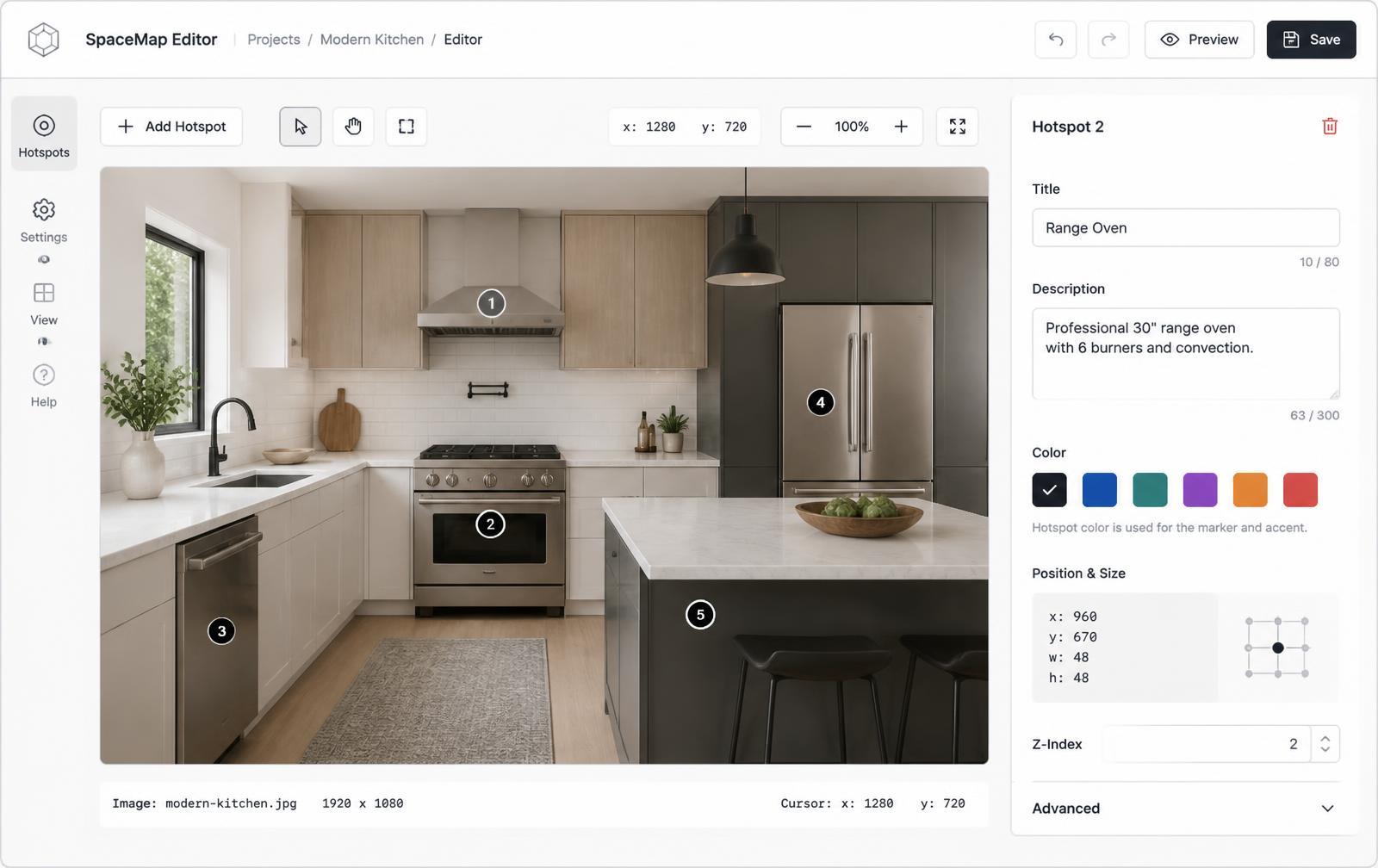
Positioned hotspots. An overlay of percentage-positioned links on top of the image, each able to show a card with context before the click. Scales correctly, works on touch, and can be edited later without touching your site's code. That is what this page builds.
Give the link context before the click
A bare link on an image is a guess: the visitor has no idea where it goes until they have already left the page. Hotspot cards fix that. A title, one or two lines of explanation, an optional image, and a labelled button turn a mystery region into an obvious decision — which is why click-through on these tends to beat plain image links.
It also means the image works for people who never click at all. A property plan whose units show size and price on hover has already done its job before anyone opens a listing.
Common uses
Floor plans where each unit links to its listing. Product renders where each part links to a spec sheet or a buy page. Team photos where each face links to a bio. Trade-show or venue maps where each booth or section links to a schedule. Infographics where each statistic links to its source, keeping the artwork clean.
In every one of those, the alternative is a wall of text under the image repeating what the picture already showed. Linking the image directly removes that duplication.
Continue exploring
Need it built for you?
Big maps, bulk hotspots, custom designs or integrations, built by our team at Upcode.
Turn any image into a guided experience.
Free forever plan. Paste one iframe into your site and ship.
Create your interactive image