

How to
How to add hotspots to an image in Figma (and a better way).
Figma prototype hotspots work inside Figma. For a real website, you need a hotspot tool that publishes a live embed.
Free forever plan · No credit card · Works in Wix, Webflow, WordPress, Shopify, Squarespace
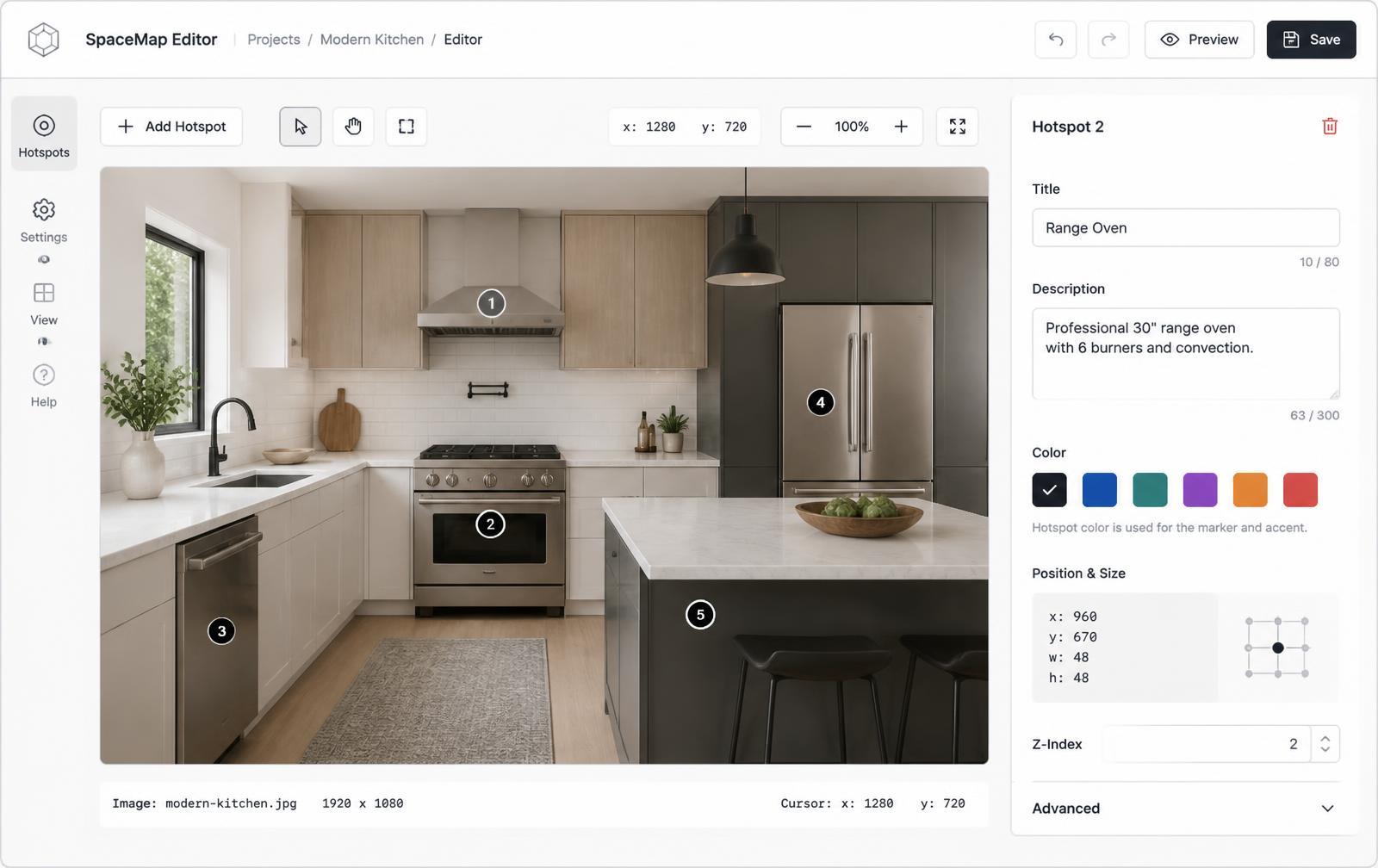
Adding hotspots to an image inside Figma
Figma's prototyping tab does support hotspot-style interactions on top of an image, and it's genuinely useful for testing a flow with your team before anything ships:
- Place your image on the frame in Figma.
- Draw an invisible rectangle over the area you want to be clickable.
- Open the Prototype tab and drag a connection from the rectangle to another frame or page.
- Repeat for every clickable area, and set the interaction trigger (usually "On click").
- Click "Present" to play the prototype. Your rectangles are now hotspots inside Figma's viewer.
This works well for usability testing and client review calls where everyone already has a Figma link. It does not produce anything you can drop into a website.
Why Figma hotspots do not work on your website
Figma prototype interactions live inside Figma's viewer. They are not exported as HTML, they cannot be embedded on a marketing site, and clients cannot experience them without a Figma link. If you want a picture with clickable hotspots on a real website, you need a hosted hotspot tool that publishes a live iframe.
Step 1: export the frame as an image, not a prototype link
In Figma, select the frame, artboard, or group you want to make interactive, then open the Export panel in the right sidebar:
- Click the frame to select it, then scroll to "Export" at the bottom of the right panel.
- Click the "+" to add an export setting, and set the scale to 2x — this keeps text and fine details sharp once the image is embedded on a real screen.
- Choose PNG for UI screenshots, dashboards, or anything with text and hard edges. Choose JPG for photographic renders or large lifestyle images where file size matters more than pixel-perfect edges.
- Click "Export [frame name]" and save the file.
This flattens every layer in the frame into one static image — exactly what you want as the base for real, embeddable hotspots.
Step 2: add real hotspots with Interactive Image
Interactive Image is a hotspot maker built for the open web. Upload the export you just made, place hotspots visually, and paste one iframe into Wix, Webflow, WordPress, Shopify, Squarespace, Notion, HubSpot, or Framer. The hotspots stay responsive and clickable for every visitor — no Figma link required.
- Create a new interactive image and upload the PNG or JPG you exported from Figma.
- Click anywhere on the image to drop a hotspot, then drag it into position.
- Write the popup content — text, an image, a link, or a video — for each hotspot.
- Publish and copy the iframe snippet from the Embed panel.
- Paste the snippet into your website's embed or HTML block and publish the page.
Because hotspots are stored as percentages of the image, they stay aligned on desktop, tablet, and mobile without any extra work. For the full walkthrough, see the interactive image maker.
Figma prototype hotspots vs an exported-image embed
| Question | Figma prototype hotspots | Interactive Image (exported PNG/JPG) |
|---|---|---|
| Works on a real website | No — only inside Figma's viewer or a Figma link | Yes — paste one iframe into any page |
| Viewers need an account or app | A Figma link, sometimes a login for edit access | No — it's a normal embed on your page |
| Responsive across screen sizes | Limited — designed for Figma's own preview frame | Yes — hotspots use percentage positioning |
| Best used for | Testing flows and reviewing with your team before launch | Shipping the final clickable image on a live site |
| Popup content (text, video, links) | Not supported — only frame-to-frame navigation | Yes — each hotspot opens a rich popup card |
Why the exported-image route is what you actually use in production
Figma is a design tool, and its prototype hotspots exist to help teams review a flow before it ships — not to power a public website. Once a design is approved, the artwork needs to leave Figma's environment and become a plain image, because that's what browsers, CMSs, and page builders can actually embed. Exporting the frame at 2x and adding hotspots in a purpose-built tool is the step that turns a Figma mockup into something a visitor can click on your live site. Compare this approach with other hotspot methods on the comparison page, or read what is an interactive image for the broader concept.
Frequently asked questions
Is Interactive Image free?
Yes. The free plan lets you publish one interactive image with a limited hotspot allowance.
Can I use my Figma image?
Yes. Export the image from Figma as PNG or JPG and upload it to Interactive Image.
What export scale should I use from Figma?
Export at 2x. It keeps text and fine UI details sharp once the image is embedded, without producing an unreasonably large file for a typical hero-sized frame.
PNG or JPG — which should I export?
PNG for UI screenshots, dashboards, and anything with text or hard edges. JPG for photographic renders or large lifestyle shots where file size matters more than pixel-perfect edges.
Do Figma prototype hotspots support popup content like text or video?
No. Figma's prototype interactions only connect one frame to another frame or page — they don't support rich popup cards with text, images, or video the way Interactive Image hotspots do.
Can I embed a Figma prototype directly on my website instead of exporting it?
Figma prototypes can be embedded via Figma's own embed kit, but that embeds the entire Figma viewer chrome and requires viewers to interact with Figma's UI — it's not the same as a clean, branded clickable image on your page.
Do I need to flatten my Figma layers before exporting?
No. Figma's export always flattens the selected frame into a single raster image regardless of how many layers or components are inside it.
Will the hotspots stay aligned if my website is responsive?
Yes. Interactive Image stores hotspot positions as percentages of the image, so they track the image at any screen width instead of breaking at fixed pixel coordinates.
Should I keep using Figma at all once I export the image?
Yes — keep using Figma's prototype hotspots for internal review and usability testing during design. Switch to an exported image with real hotspots only when the design is ready to go live on your website.
Need it built for you?
Big maps, bulk hotspots, custom designs or integrations, built by our team at Upcode.
Turn any image into a guided experience.
Free forever plan. Paste one iframe into your site and ship.
Create your interactive image