

Use case · Education
Diagrams students click through instead of just read.
Label a biology diagram, a historical map, or a machine's parts with hotspots, then embed it in your LMS, slides, or course website.
Free forever plan · No credit card · Works in Wix, Webflow, WordPress, Shopify, Squarespace
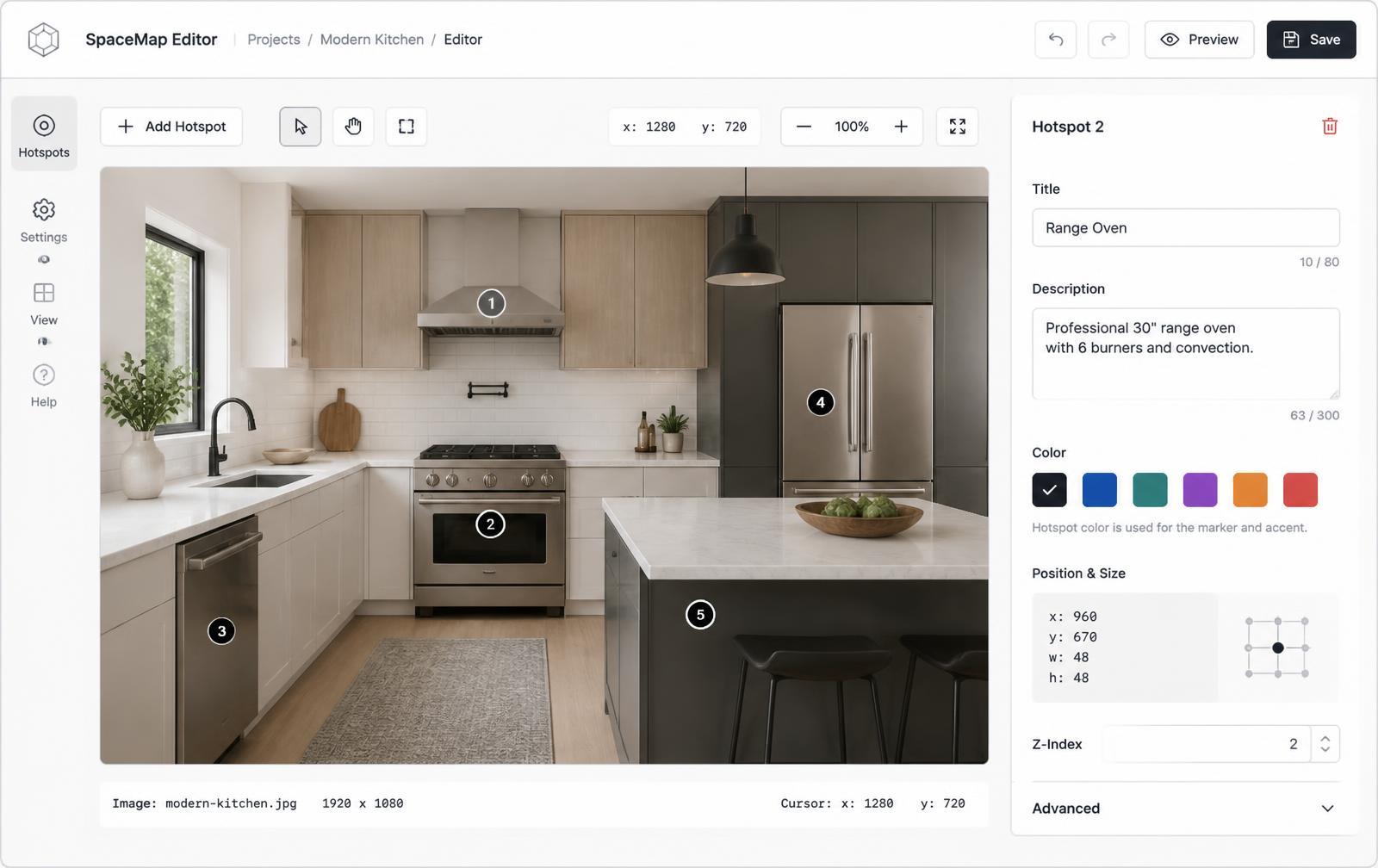
Labeled diagrams
Turn a textbook-style diagram into hotspots students click one at a time instead of a wall of labels and lines.
Historical maps and timelines
Mark locations or events on a map image, each with a short explanation or linked source.
LMS-ready embed
One iframe drops into a Canvas page, Google Site, or Moodle module the same way a video embed would.
What you get
- Great for biology, geography, history, and engineering diagrams
- Touch-friendly hotspots work on classroom tablets and Chromebooks
- Embeds in most LMS platforms via iframe or HTML block
- Breaks dense diagrams into bite-sized, click-to-reveal pieces
- Reuse one diagram across multiple lessons or courses
- No login required for students to view the embedded page
What to write in each hotspot popup
A diagram built for a lesson needs less text per hotspot than a product diagram does — students are scanning for one concept at a time, not comparison-shopping specs. Aim for a title, a one-sentence definition or fact, and, where it helps, a link to a source or a related reading.
| Subject | Hotspot title | Popup content |
|---|---|---|
| Biology (cell diagram) | Mitochondria | One-sentence function, plus a link to the textbook chapter |
| History (battle map) | Troop position, 6am | Date, commanding officer, and what happened next |
| Geography (world map) | Capital city | Population, region, a photo |
| Engineering (machine diagram) | Governor assembly | What it regulates and how it fails |
Building a lesson-ready interactive diagram
- Upload the diagram, map, or infographic to Interactive Image.
- Place a hotspot on each labeled part, location, or event.
- Write a short explanation for each hotspot — a definition, a date, or a linked source.
- Copy the embed code and paste it into your LMS page, course website, or slide deck link.
- Reuse the same diagram in future course sections without rebuilding it.
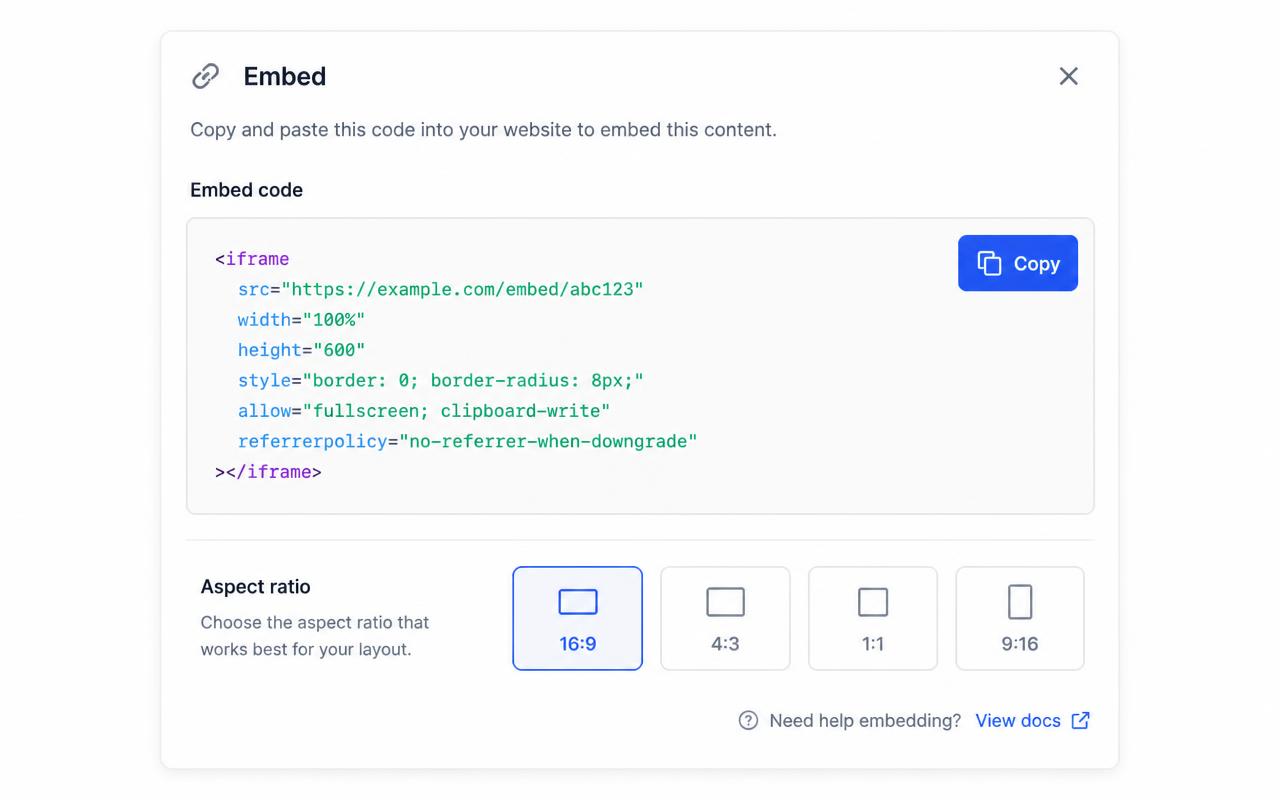
Where it gets embedded
The most common home is an LMS content page — a Canvas page, a Google Site module, or a Moodle "page" resource, all of which accept an HTML/iframe block. It also works well as a standalone course-website page linked from a syllabus, or inside a slide deck as a "click here to explore" link during a lecture. Because the embed is just an iframe, it drops into any of these the same way a YouTube video would.
Mobile, tap behavior, and accessibility
On a phone or tablet, hotspots become tap targets sized for a finger rather than a mouse pointer, and the popup opens as a full-width card so nothing gets clipped off-screen — see hotspot alignment on mobile for how that positioning works. Hotspots are keyboard-navigable and include alt text, which matters for a classroom with students using screen readers or a keyboard-only setup; see image map accessibility for the details.
Keeping the page indexable around the iframe
Search engines and some LMS search tools can't read the content inside an iframe, so a page that's only an embedded diagram with no surrounding text won't rank for the topic it covers. Write a short paragraph above the embed describing what the diagram shows, and list the key hotspot labels as plain text below it (a simple bulleted recap works). That gives crawlers — and students using browser "find on page" — something to match against, while the interactive version stays the main teaching tool. For course creators building this alongside other materials, see the interactive image maker or the blog for more ideas.
Continue exploring
Need it built for you?
Big maps, bulk hotspots, custom designs or integrations, built by our team at Upcode.
Turn any image into a guided experience.
Free forever plan. Paste one iframe into your site and ship.
Create your interactive image