

How to
How to make an image clickable — on any platform.
The quick answer for linking a whole picture, plus the easy way to put several links on one image without code.
Free forever plan · No credit card · Works in Wix, Webflow, WordPress, Shopify, Squarespace
The short answer
One link for the whole image: use your site builder's link button on the image, or in HTML wrap it: <a href="…"><img …></a>.
Different links on different parts: add clickable hotspots to the picture, then paste one embed code. Follow the steps below.
Add multiple links to one image (5 steps)
- Decide: one link or many. If the whole picture should go to one page, use your website builder's built-in image link. If different parts of the picture need different links or info, you need clickable areas (hotspots).
- Upload the image. Upload the picture to Interactive Image at its original size and crop.
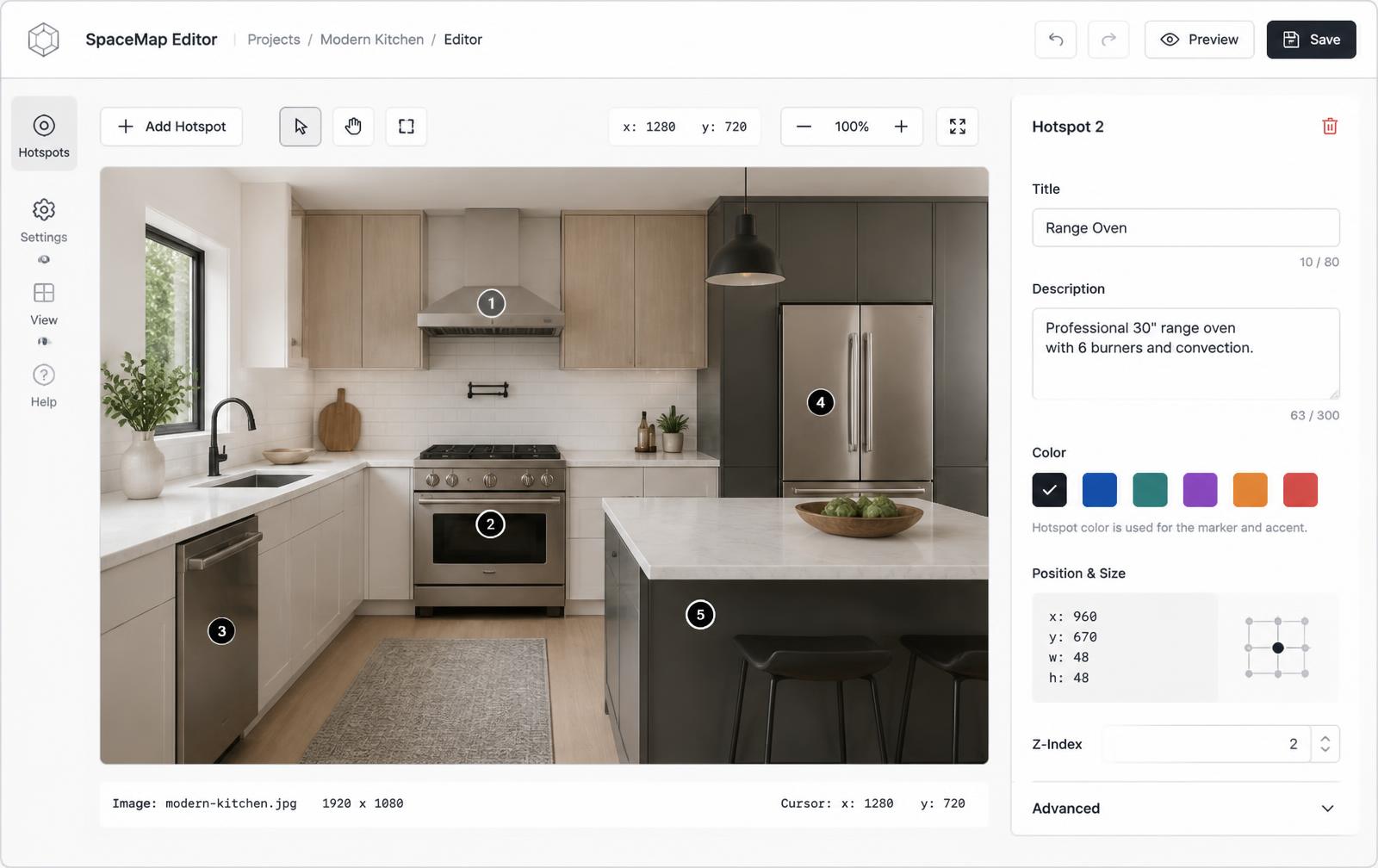
- Click to add each clickable spot. Click on the picture where each link should go. Each spot can open a page, a popup card, a photo, or a video.
- Copy the embed code. Publish and copy the single iframe snippet.
- Paste it into your site. Add an Embed / HTML block in Wix, Squarespace, WordPress, Webflow, Shopify, or Google Sites and paste the code.
Watch it: clickable spots in 30 seconds
Recorded in our own editor: a dot is added, named, styled, and then opens its card when a visitor hovers it.
Platform by platform
| Platform | Whole image → one link | Several links on one image |
|---|---|---|
| HTML | Wrap the image in a link: <a href="https://…"><img src="photo.jpg" alt="…"></a>. | <map>/<area> works but uses fixed pixels that drift on phones. Use a percentage-based embed instead. |
| Wix | Select the image → click the link icon → choose a page or URL. | Add → Embed Code → Embed HTML, then paste the Interactive Image iframe. |
| Squarespace | Edit the Image block → Clickthrough URL. | Add a Code block and paste the iframe. |
| WordPress | Select the image block → Link toolbar button → paste URL. | Add a Custom HTML block and paste the iframe. |
| Elementor | Image widget → Link → Custom URL. | Drag in the HTML widget and paste the iframe. |
| Webflow | Wrap the image in a Link Block. | Add an Embed element and paste the iframe. |
| Shopify | In the theme editor, many image sections have a Link field. | Add a Custom Liquid section and paste the iframe. |
| Canva | Select the image → Link (chain icon) → paste URL. Links work in PDF and website exports. | Canva links a whole element. For several links on one picture, embed an interactive image on the published page. |
| Google Slides / Docs | Select the image → Insert → Link (Ctrl/Cmd + K). | Draw transparent shapes over each area and link each shape, or link to a hosted interactive image. |
Tips so people actually click
- Make clickable spots visible — a dot or number tells visitors there is something to tap.
- Use large tap targets; most visitors are on phones.
- Write alt text that says where the link goes, not just what the picture shows.
- Keep important text on the page itself, not only inside the picture, so search engines can read it.
Need it built for you?
Big maps, bulk hotspots, custom designs or integrations, built by our team at Upcode.
Turn any image into a guided experience.
Free forever plan. Paste one iframe into your site and ship.
Create your interactive image